8 reasons manufacturer program files get sent back (and how to prevent each)
Eight reasons manufacturer and hub program reports from infusion centers get sent back, from unclear line meaning to blank columns, and how to prevent each.

Written by Linus Tse, founder of Greyfield Data
· 11 min read
On this page 15 sections

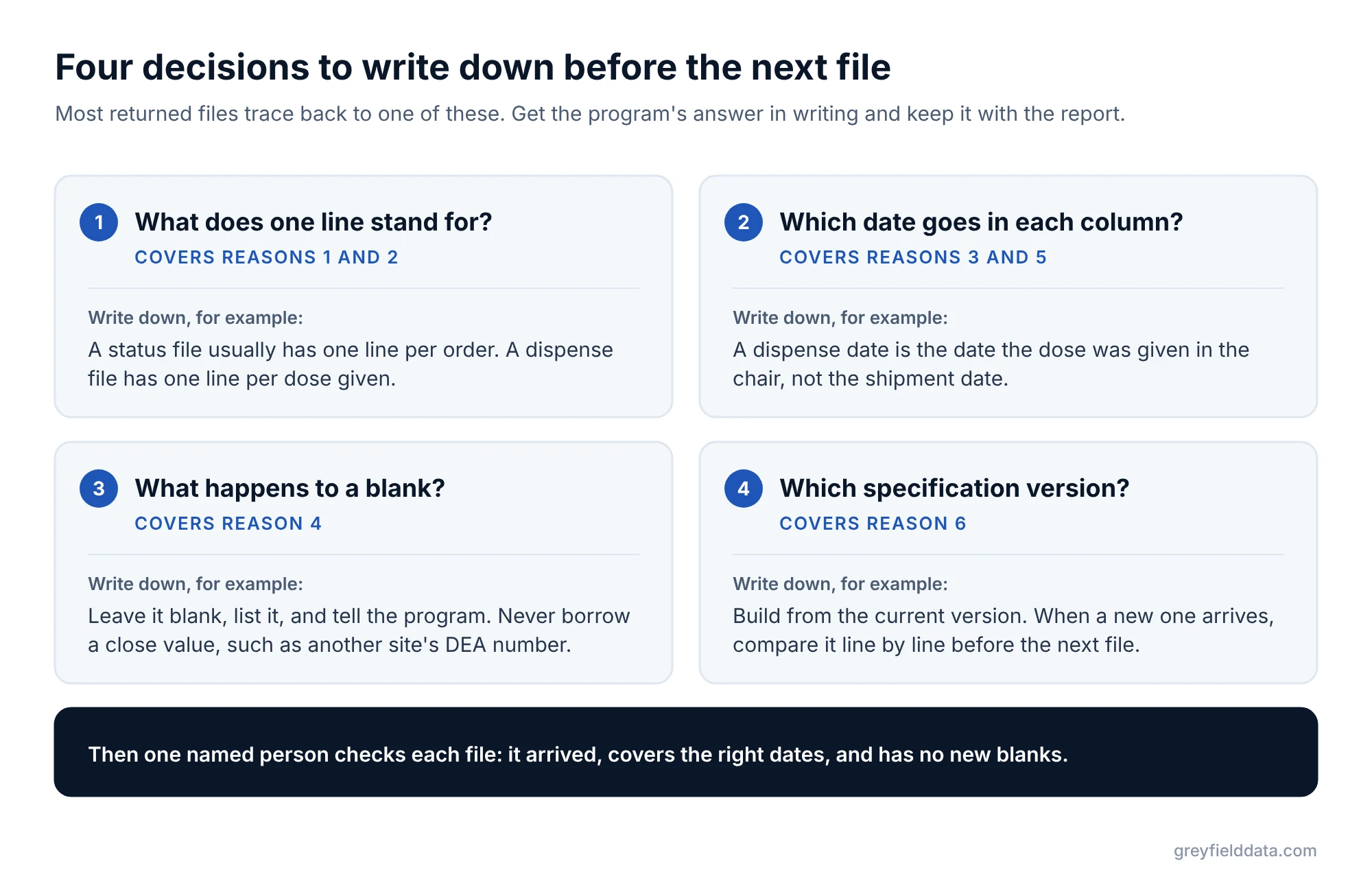
Manufacturer and hub program files usually get sent back because of a decision nobody wrote down, not because your data is bad. Common examples are what one line stands for, which date goes in each column, what to do with a blank, and which version of the program's specification you built from. Write those decisions down, agree them with the program, and run a short set of checks before each file goes out. Most rejections stop.
I build and check the weekly reports that infusion centers owe manufacturer and hub programs under their program agreements. The free guide Manufacturer Programs Without the Manual Reporting covers what these programs ask for and how to automate the files. This post covers the eight reasons I see files come back.
Key takeaways
- Most returned files trace back to an unwritten decision: what one line means, which date to use, or how to handle a blank.
- Get the program's answer in writing for each open question, and keep it with the report.
- A file that looks clean can still be wrong. Check the date range and line count every week, not just once.
- Leave a required column blank and tell the program, rather than filling it with something close. A visible gap gets fixed; a wrong value that looks right does not.
- Every time the program's specification changes, recheck your report against the new version before the next file goes out.
Quick answers
- Most common reason: nobody agreed what one line in the file stands for.
- Most damaging reason: a file that passes every format check but covers the wrong dates.
- Fastest fix: a seven-point check before each file goes out, listed below.
- Who owns it: one named person at the center, even when the file is sent automatically.
- Weekly habit: confirm the file arrived, covers the right dates, and has no new blanks.
Which reason is it, and how do you prevent it?
Use the table to match the program's feedback to a reason, then go to that section.
| # | Reason | What the program usually says | How to prevent it |
|---|---|---|---|
| 1 | Nobody agreed what one line stands for | "Too many lines" or "missing patients" | Get the meaning of one line in writing |
| 2 | The report starts from the wrong list | "Patients missing" or "repeated lines" | Start from the list that matches one line |
| 3 | A word means different things to each side | "Dispense dates don't match shipments" | Write a short glossary with the program |
| 4 | Required columns are blank | "Required field missing" | List blanks, report them, fix at the source |
| 5 | The file covers the wrong dates | "Duplicate records" or "data out of range" | Check the earliest and latest date every week |
| 6 | Columns or codes don't match the specification | "File failed to load" | Build from the current spec, exactly |
| 7 | Status and dispense files disagree about a patient | "Patient active but no doses" | Check every active patient in both files |
| 8 | A changes-only file drifted out of step | "Our counts don't match yours" | Send a full file on an agreed schedule |
1. Nobody agreed what one line stands for: is it a patient, an order, or a visit?
This is the most common reason. "One line per patient status" can mean one line per order, per visit, or per change in status, and each gives a different number of lines.
If you send one line per visit and the program expected one per order, they see repeats. If you send one per order and they expected one per visit, they see missing lines.
- Prevent it: ask the program, in writing, what one line stands for in each file. Write the answer at the top of the report.
- Check it: the number of lines should equal the number of orders, visits, or patients the program asked for.
The status vs dispense report counts guide explains why the two main files never have the same number of lines.
2. The report starts from the wrong list: does it miss patients or repeat them?
A report built from visits misses patients who have no visit yet. A report built from orders repeats the order on every visit if visit details are added. Either way, the program sees patients missing or lines repeated.
- Prevent it: start the report from the list whose lines match what the program asked for. A status file usually starts from orders. A dispense file usually starts from completed doses.
- Check it: pick five patients you know are waiting for a first dose. They should appear in the status file even though they have no visit.
If your system is WeInfuse, the orders vs appointments guide shows the difference, and the duplicate rows guide explains why lines repeat.
3. A word means different things to each side: what does "dispense" mean here?
To a pharmacy, "dispense" means the drug was shipped. In an infusion center's file, it usually means the dose was given in the chair. "Active," "on hold," and "discontinued" can also mean different things to the center and the program.
- Prevent it: write a one-page glossary with the program: each status and date term, and what it means in your file.
- Check it: compare five patients' dispense dates with their visit dates, not their shipment dates.
4. Required columns are blank: what do you do when your system doesn't have the value?
Programs mark each column as required or "required if available." Required columns must be filled on every line. The blanks I see most often are diagnosis code, prescriber NPI and address, payer, the site's DEA or NCPDP number, and the hub's patient ID.
- Prevent it: before the first file, list every required column your system can't fill. Agree with the program which ones can be blank for now.
- Never: fill a blank with something close, such as another site's DEA number. A wrong value that looks right is harder to find than a gap.
- Check it: count blank required columns each week. A jump means something changed at the source.
5. The file covers the wrong dates: did it pull a week or a year?
A file can have every line unique, every column filled, and still be wrong because the date filter pulled the wrong period. In one file I reviewed, a date filter had pulled a full year instead of a week.
Which date goes in which column also matters. A visit date, an order date, and a "last updated" date can all look right and give different files.
- Prevent it: write down which date each column uses and which date decides whether a line is in the file.
- Check it: look at the earliest and latest date in every file before it goes out. It takes seconds.
6. Columns or codes don't match the specification: did the file even load?
Programs load files automatically, so small differences stop the whole file. An extra working column, columns in a different order, or a code spelled differently from the program's list will fail the load.
Specifications change, too. On one program I worked on, the status file switched from one line per visit to one line per order between versions.
- Prevent it: build from the current version of the specification, with exactly their columns in their order and codes spelled as listed.
- Check it: every time a new specification arrives, compare it with the last one line by line, and update the report before the next file.
7. Status and dispense files disagree about a patient: is an active patient missing doses?
The status file says where each patient's therapy stands, and the dispense file lists doses given. If a patient is active in one and missing from the other, the program will ask why.
- Prevent it: check that every active patient in the status file appears in the dispense file when they have had a dose, with the same latest dose date.
- Remember: "the two files agree" and "the file meets the specification" are separate checks. They can agree while required columns are still blank.
The used inventory vs approved supply guide explains another common mismatch: drug used at visits is not the same as approved supply.
8. A changes-only file drifted out of step: do your counts still match theirs?
Many programs prefer a weekly file with only what changed since last week. It is smaller, but one missed week or one change that wasn't detected leaves the program's copy out of step with yours, and nobody notices until counts differ.
- Prevent it: agree a schedule for a full resend, such as monthly or quarterly. Agree what counts as a change.
- Check it: after each full resend, compare the program's active patient count with yours.
The full file vs changes-only guide covers which to choose and how often to resend in full.
What should you check before every file goes out?
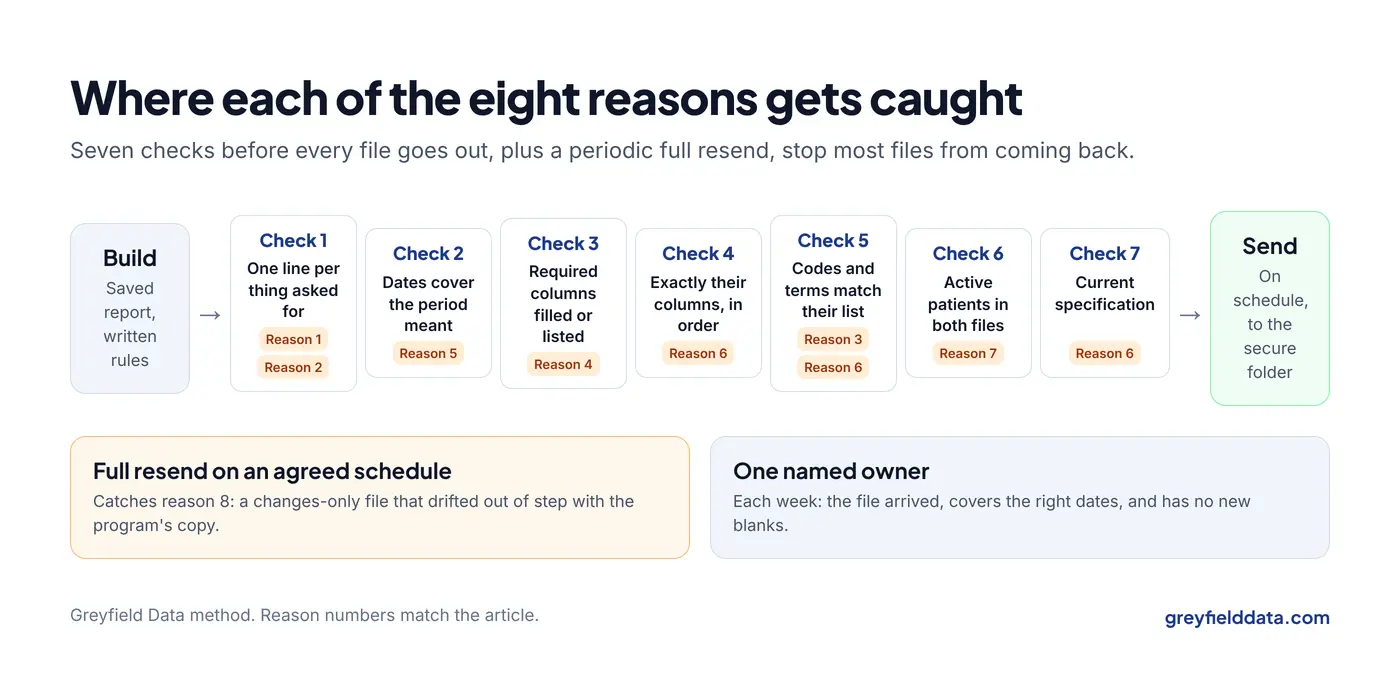
Seven checks catch most of the eight reasons. Run them before the first file and after any change to the report or the specification.
- One line per thing they asked for. Lines equal orders, doses, or patients.
- The dates cover the period you meant. Look at the earliest and latest date.
- Required columns are filled, or the blanks are listed for whoever can fix them.
- Exactly their columns, in their order, with no working columns left in.
- Codes match their list, spelled exactly as the specification shows.
- Every active patient shows up in both files, with the same latest dose date.
- The report matches the current specification, not the one from last year.
Can you stop rebuilding these files by hand?
Yes, for most programs. Each file comes from a saved report with the rules written into it, and it is delivered on a schedule to the program's secure folder. Your team then checks the file instead of rebuilding it.
This is reporting your center has agreed to under the program agreement. Where patient information is involved, a business associate agreement should be in place, and each file should carry only the fields the agreement requires. The guide to scheduling WeInfuse reports covers scheduled delivery, and the WeInfuse reporting guide covers the reports themselves. WeInfuse is a trademark of its owner. Greyfield Data is independent and not affiliated with WeInfuse.
An automated file still needs an owner. Each week, someone should confirm the file arrived, covers the right dates, and has no new blanks.
What to do next
Take your last returned file, match the program's feedback to one of the eight reasons, and write down the decision that would have prevented it. Then add the seven checks to your weekly routine.
For the full picture, get the free guide Manufacturer Programs Without the Manual Reporting. To see how many hours the weekly rebuild costs, try the reporting time calculator, and the infusion data readiness check shows where your reporting stands. More guides sit on the infusion analytics resources page. If you want your program files built and checked so they stop coming back, book a call with me.
Frequently asked questions
Why do manufacturer program files get rejected?
Usually because of an unwritten decision: what one line stands for, which date goes in each column, or what to do with a blank. Format problems, such as extra columns or misspelled codes, are the next most common cause.
What is the difference between a status file and a dispense file?
A status file has one line per order or patient on a therapy, showing where it stands. A dispense file has one line per dose given. They count different things, so their line counts never match.
Should we fill a required column if our system doesn't have the value?
No. Leave it blank, tell the program, and fix it at the source. A close but wrong value, such as another site's ID number, is harder to find later than a visible gap.
How often should we send a full file instead of only changes?
Agree a schedule with the program, such as monthly or quarterly. A periodic full resend corrects any drift from missed weeks or changes that were not detected.
Does program reporting need a business associate agreement?
Program reporting is done under an agreement that says which reports are due and what goes in them. Where patient information is involved, a business associate agreement should be in place, and files should carry only the fields the agreement requires. Check with your compliance lead.
Part of the Infusion analytics guides, a reading path through related articles.
Linus Tse
Founder of Greyfield Data. Built 400+ dashboards. Certified in Sigma, Snowflake, Tableau, and Power BI.
About Linus