How do you schedule WeInfuse reports to SFTP, email or Drive?
Schedule a WeInfuse Looker report with a rolling date filter, one backfill, a recurring delta, clean CSV naming and a periodic full refresh for failed sends.

Written by Linus Tse, founder of Greyfield Data
· 8 min read
On this page 9 sections
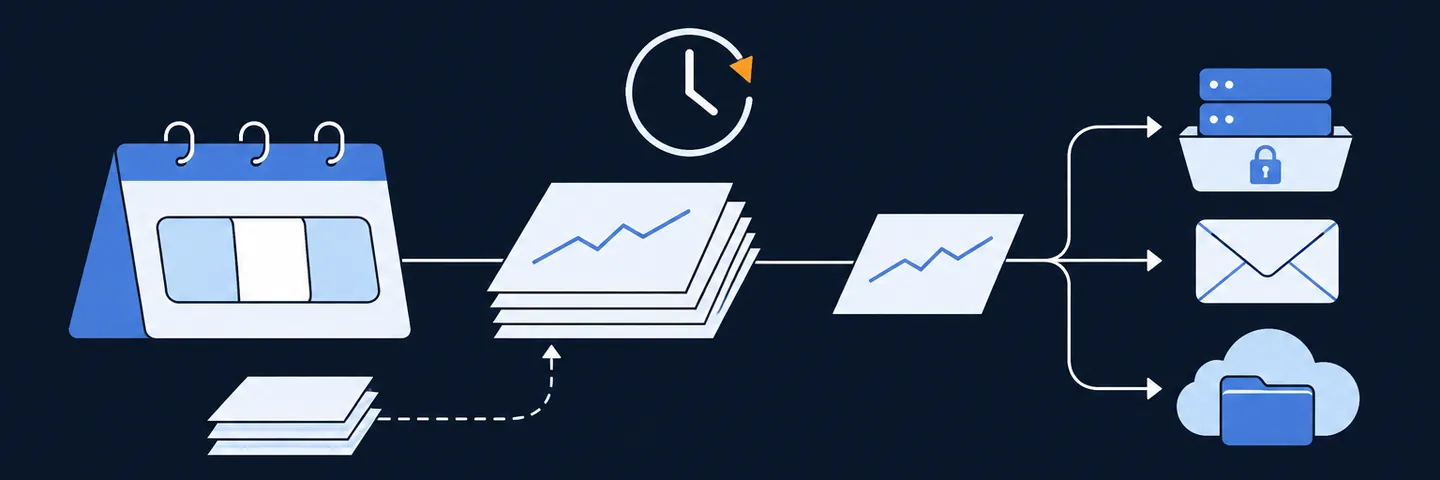
To schedule a WeInfuse report, save it as a Look with a rolling date filter, then schedule it from Looker's delivery menu to SFTP, email or another destination your account has enabled, as a CSV. For a feed someone else depends on, send one historical backfill first, then a recurring delta, and run a periodic full refresh so a failed send does not leave a permanent gap.
I have set up WeInfuse Looker schedules for manufacturer and hub program reporting and for loads into a CRM and a warehouse. If you need a feed built and checked end to end, that is the WeInfuse reporting service I run, or book a 30-minute call.
Key takeaways
- Schedule a saved Look, not an ad hoc Explore, so the fields, filters and limits are fixed.
- Use a rolling filter such as the last 7 complete days, and send one historical backfill before the first recurring file.
- A scheduled send is a batch of whatever the query returns. It carries no deletes or change events, so plan a periodic full refresh.
- In my engagements a failed scheduled send was not picked up again automatically. A green run history does not prove a complete feed.
- Agree the file format, columns, naming and delta rule with the recipient before the first send.
Quick answers
- Where to schedule: the delivery menu on a saved Look or dashboard.
- Best format for feeds: CSV, with the contract's exact columns and order.
- Row limit to pick: "All Results", then check the row count.
- Usual destination for PHI: SFTP to an agreed server your compliance team approved.
- Full refresh cadence: monthly is a common starting point for weekly feeds.
How do you schedule a WeInfuse Looker report?
You schedule a WeInfuse report the same way as any Looker content: open the saved Look or dashboard and choose to schedule a delivery. Looker's delivery documentation covers every option. Here is the short version.
- Save the report as a Look with its final fields, filters, sort and column order.
- Set a rolling date filter, for example "7 days ago for 7 days", so each run covers the last seven complete days. Looker's filter expressions explain the syntax.
- Open the schedule dialog, choose the destination, the format (CSV for most feeds), the recurrence and the delivery time zone.
- Choose the row limit on purpose. Looker's docs describe a typical 5,000-row limit for results shown in a table and an "All Results" option for file formats such as CSV. A weekly file that quietly stops at 5,000 rows is a common surprise. The Looker API checklist covers the same limit for API pulls.
- Send a test and open the file before you turn on the schedule.
Which destinations can WeInfuse Looker send to?
The destinations depend on what is enabled in your WeInfuse Looker account. Looker's built-in options include email, webhook, Amazon S3 and SFTP, and admins can enable integrations such as Google Drive. Destinations we have seen in WeInfuse Looker include email, SFTP, Google Drive, Slack, Teams, Salesforce Campaigns, Tray and Zapier.
| Destination | Good for | Watch out for |
|---|---|---|
| SFTP | Contract feeds to a manufacturer, hub or data vendor; warehouse loads | Folder paths and file naming, server credentials, who watches for missing files |
| Small internal reports | Size limits, and PHI in inboxes | |
| Google Drive | Shared internal files | Access control on the folder |
| Webhook or automation tools | Triggering another system | Whether the tool will sign a BAA if the data includes PHI |
If the report contains patient information, choose a destination and any middleware that your compliance team has approved for PHI. On one CRM project the team ruled out a popular automation tool because it would not sign a BAA at their plan level, and used SFTP plus custom code instead.
Should you send a full file or a delta?
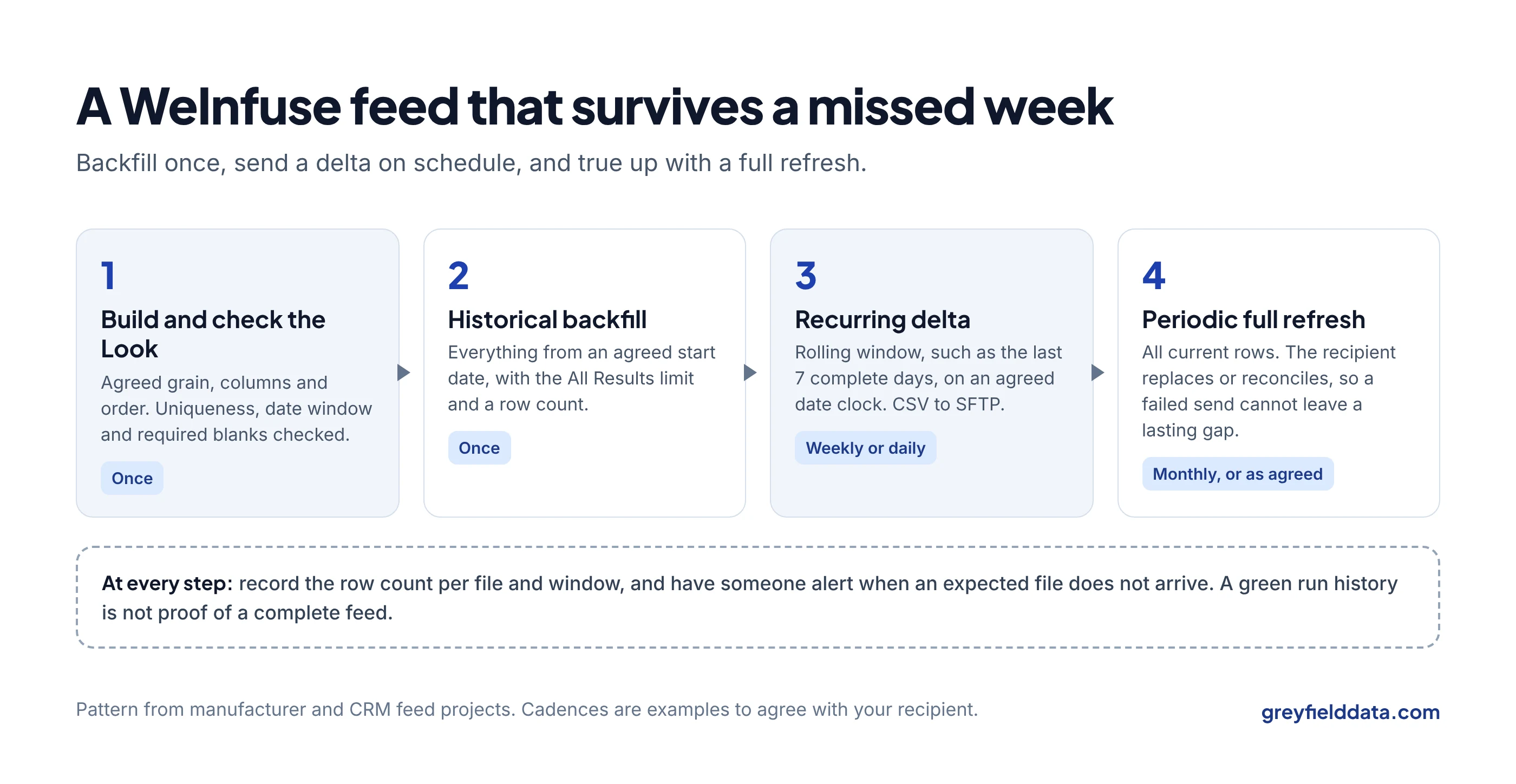
Send a full historical backfill once, then a delta on each run, plus a periodic full refresh. Each answers a different need. The full file vs changes-only guide explains the trade-off in plain terms.
| Feed type | What it contains | Use it when | Risk |
|---|---|---|---|
| Historical backfill | Everything from an agreed start date | First load, or rebuilding after a gap | Large file; check the row limit |
| Recurring delta | Rows created or changed in the rolling window | Weekly or daily contract feeds | Misses anything a failed run did not send |
| Periodic full refresh | All current rows, or a long window | Monthly or quarterly true-up | Recipient must know to replace, not append |
Pick the delta clock with the recipient
A delta needs a date that moves when a row is new or changed. For administration rows that is usually the appointment date. For rows with no event date, such as an order still pending authorization, the choice is harder. On one manufacturer feed, an order's updated date was a candidate clock, but we treated it as a proposal until the recipient confirmed it against the contract. Agree the clock in writing before the first send.
Also agree what a value like "pending" means. In one contract it meant the status a row carries, not "resend every pending order every week". Those two readings produce very different files.
What happens when a scheduled send fails?
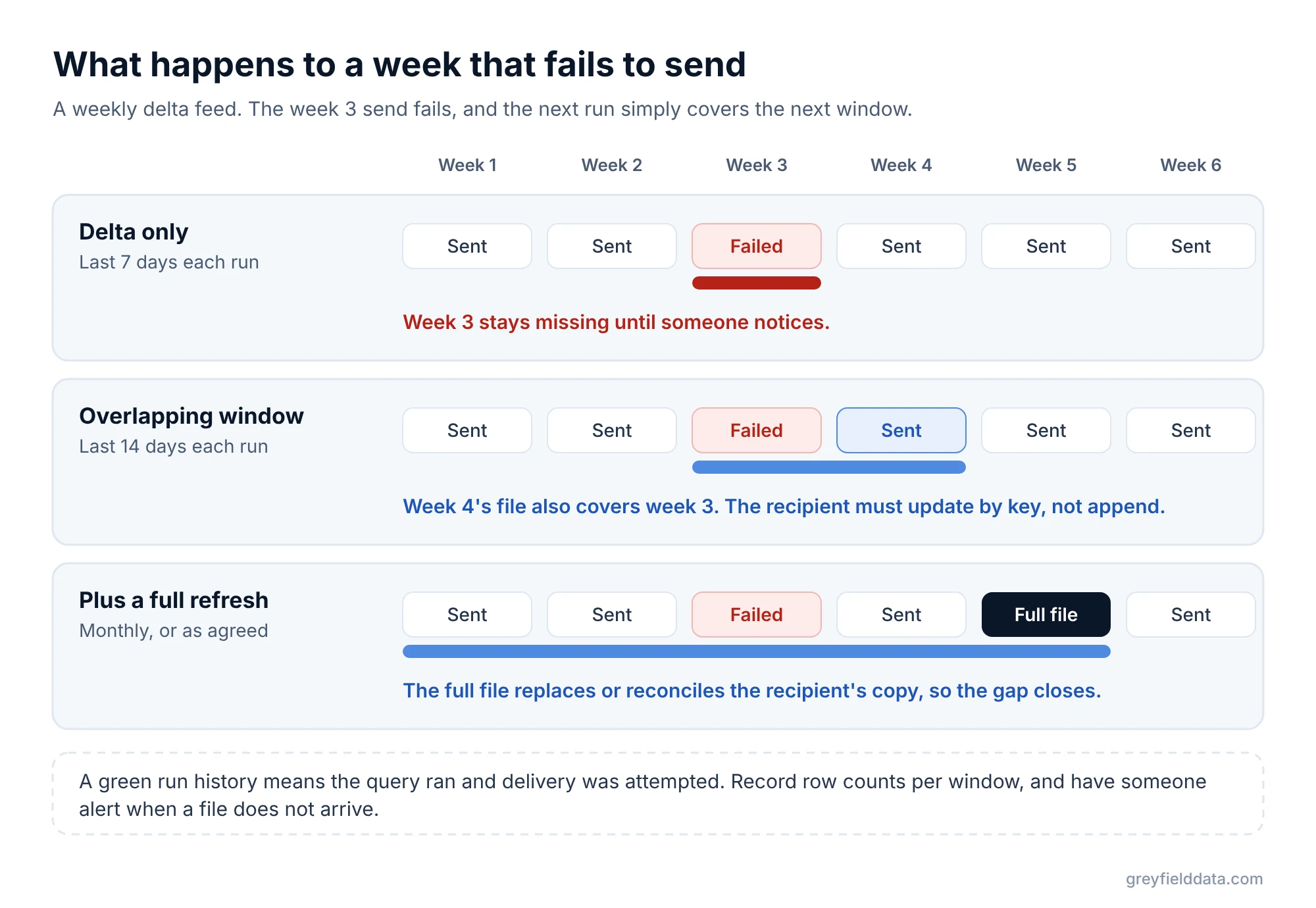
In the WeInfuse Looker setups I have worked with, a scheduled send that failed was not sent again automatically, and the next run simply covered the next window. So a failed week stays missing until someone notices.
Three things protect you:
- A periodic full refresh. On a CRM load, we paired the incremental schedule with a regular "send everything" run, so the recipient could replace or reconcile their copy and any gap closed itself.
- Overlapping windows. Sending the last 8 or 14 days on a weekly schedule means one failed run is covered by the next. The recipient must then upsert by key, not append.
- Someone watching for the file. The recipient, or a small check on the SFTP folder, should alert when a file does not arrive.
A green run history means the query ran and the delivery was attempted. It does not prove the window was complete. The same is true for API pulls: on an integration that pulled WeInfuse Looks through the API, a failed batch could be skipped while the checkpoint moved on. Record row counts per window and reconcile them. The manufacturer program reporting guide sets out the checks a recipient should expect.
How should you name and format the file?
Use CSV, the exact columns and order in the contract, and a file name that tells the recipient what it is and when it ran.
- Columns. Match the contract header names and order exactly. Do not send helper columns you used for calculations. Hidden fields can still change the grain, so recheck uniqueness after hiding them.
- Delimiter and format. Confirm comma or pipe delimited, date format, and how blanks should look. One older statement of work I worked from asked for pipe-delimited files; the later contract asked for CSV.
- File name. For SFTP deliveries, Looker builds the file name from the schedule title plus a timestamp and token, and strips characters other than letters, numbers, underscores and hyphens, as described in its delivery docs. Put the feed name and grain in the title, such as
dispense_weekly_appointment_grain. - Time zone. Set the schedule's delivery time zone to match the business day the report uses.
Before the first send, run the checks in the duplicate rows guide: business-grain uniqueness, date window, required blanks and column set.
For the bigger picture of models, Explores and API access, see the WeInfuse reporting guide and the WeInfuse data guide. If the feed lands in a warehouse for dashboards, WeInfuse data in Power BI and Snowflake covers the next step.
If you are choosing which Explore the feed should start from, the orders vs appointments guide has a decision table, and the infusion center KPI glossary covers the metrics feeds often support.
WeInfuse is a trademark of its owner. Greyfield Data is independent and not affiliated with WeInfuse.
Frequently asked questions
Can WeInfuse send a report to SFTP automatically?
Yes, if SFTP delivery is available in your WeInfuse Looker account. Schedule the saved Look to an SFTP destination as a CSV with a rolling date filter.
Why did my scheduled WeInfuse report stop at 5,000 rows?
Looker has a typical 5,000-row limit for results in a table. For file formats such as CSV, choose the "All Results" limit option in the schedule, then check the row count.
How often should I run a full refresh?
Often enough that a missed delta would be caught before anyone relies on the gap. Monthly is a common starting point for weekly feeds; agree it with the recipient.
Should I email reports that contain patient data?
Only if your compliance team has approved that route. SFTP to an agreed server is the usual choice for feeds that carry PHI.
What to do next
Write down the grain, the delta clock and the full-refresh cadence for your feed, and get the recipient to agree all three before you schedule anything. The infusion data readiness check is a quick way to see what else the feed depends on.
If you want help building the Look, the schedule and the checks, book a call.
Part of the Infusion analytics guides, a reading path through related articles.
Linus Tse
Founder of Greyfield Data. Built 400+ dashboards. Certified in Sigma, Snowflake, Tableau, and Power BI.
About Linus