Manufacturer programs without the manual reporting: a guide for infusion centers
A free guide for infusion centers in a manufacturer or hub program: what the program asks for, why files get sent back, and how to automate weekly reports.

Written by Linus Tse, founder of Greyfield Data
· 9 min read
On this page 10 sections

If your infusion center takes part in a manufacturer or hub program, the agreement usually requires a set of reports every week, and in many centers someone rebuilds those files by hand. I wrote a free 17-page guide, Manufacturer Programs Without the Manual Reporting. It covers what these programs ask for, why files get sent back, and how to set the reports up so they build and deliver themselves.
You can get the guide (free PDF). If your team rebuilds these files every week, I build and check program reports for manufacturers and hubs, and you can book a call to talk through yours.
Key takeaways
- Most manufacturer and hub programs ask for some version of four reports: a status file, a dispense file, an inventory file, and a patient file. Match them by what they contain, not by what the program calls them.
- Your status and dispense files will never match line for line. The status file has one line per order; the dispense file has one line per dose given. Check that every active patient shows up in both.
- Most files come back because of a decision nobody wrote down: what one line stands for, which date goes in each column, or what to do with a blank.
- The weekly rebuild goes away when each file comes from a saved report with fixed rules, delivered on a schedule to the program's secure folder.
- An automated file still needs an owner. Check each week that the file arrived, covers the right dates, and has no new blanks.
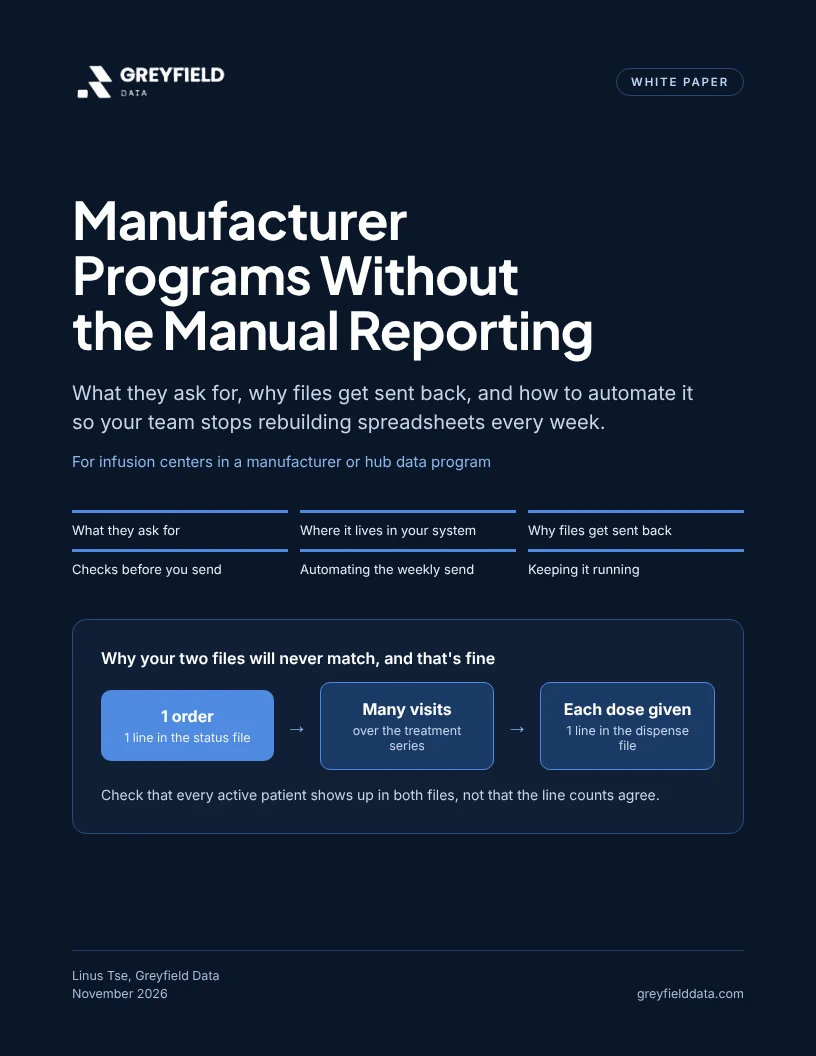
Manufacturer Programs Without the Manual Reporting: what they ask for, why files get sent back, and how to automate it so your team stops rebuilding spreadsheets every week.
Who is the guide for?
It is for owners, administrators, and directors of operations at infusion centers that have agreed to a manufacturer or hub program and now owe it reports on a schedule.
Programs like these support patient access, therapy support, and product supply. An appendix, "For whoever builds the file", covers the technical detail for the person on your team or outside it who builds the files.
This is reporting your center has agreed to. The program agreement says which reports are due and what goes in them. Where patient information is involved, a business associate agreement (BAA) should be in place, and each file should carry only the fields the agreement requires.
What do manufacturer and hub programs ask for?
Usually four reports, described in the program's specification, a spreadsheet that lists every column. The names vary by program.
| Report | What it tells the program | One line is | Good to know |
|---|---|---|---|
| Status file | Where each patient's therapy stands: active, waiting, denied, stopped | One order: one patient on one therapy | Some programs want one line per visit instead. Get the answer in writing |
| Dispense file | Which doses were given, where, and to whom | One dose given | Here "dispense" usually means given in the chair, not shipped from a pharmacy |
| Inventory file | How much product each site has, and how it moved | One product at one site on one day | Today's starting count must equal yesterday's ending count |
| Patient file | Who is enrolled in the program | One patient | Covered by the BAA, and limited to the fields the agreement lists |
The specification marks each column as required or "required if available". Required columns must be filled on every line. Columns marked required if available are sent when your system has the value. On one program I worked on, the agreed first phase filled every required column and left those blank until later.
Why do files get sent back?
On the programs I have worked on, files rarely came back because the data was bad. They came back because of a decision nobody made, or one each side made differently.
- Nobody wrote down what one line stands for. "One line per patient status" can mean per order, per visit, or per change.
- The report starts in the wrong place. A report built from orders lists patients with no visit yet, and one built from visits repeats the order on every visit. The guide to orders versus appointments in WeInfuse shows the difference.
- Words mean different things on each side. To a pharmacy, dispense means shipped. In your file it usually means given.
- Required columns are blank in your system. Diagnosis code, prescriber NPI and address, payer, the site's DEA or NCPDP number, and the hub's patient ID are the blanks I see most.
- The file looks clean and is still wrong. In one file I reviewed, every line was unique, but a date filter had pulled a full year instead of a week.
- The specification changed and the report did not. On one program, the status file switched from one line per visit to one line per order between versions.
When a required column is empty in your system, send it empty, tell the program, and fix it at the source. Do not fill it with something close, such as another site's DEA number. A visible gap gets fixed; a wrong value that looks right does not.
If your system is WeInfuse, why WeInfuse Looker reports show duplicate rows shows the "wrong starting place" problem in one system. WeInfuse is a trademark of its owner. Greyfield Data is independent and not affiliated with WeInfuse.
What should you check before a file goes out?
Run a short set of checks before the first file and after any change to the report or the specification.
- One line per thing they asked for. The number of lines equals the number of orders, doses, or patients.
- The dates cover the week you meant. Look at the earliest and latest date in the file.
- Required columns are filled, or the blanks are listed for whoever can fix them.
- Exactly their columns, in their order, with no hidden working columns.
- Codes match their list, spelled exactly as the specification shows.
- Every active patient shows up in both files, with the same latest dose date.
- "The files agree" and "the file meets the specification" are two separate answers. They can agree while required columns are still blank.
The guide's appendix lists all eight checks in the builder's terms, including one for inventory counts. For the inventory file itself, the WeInfuse inventory report guide explains where the counts come from.
How do you check the status and dispense files against each other?
Compare them order by order, not by line count. The two files count different things, so the totals tell you nothing.
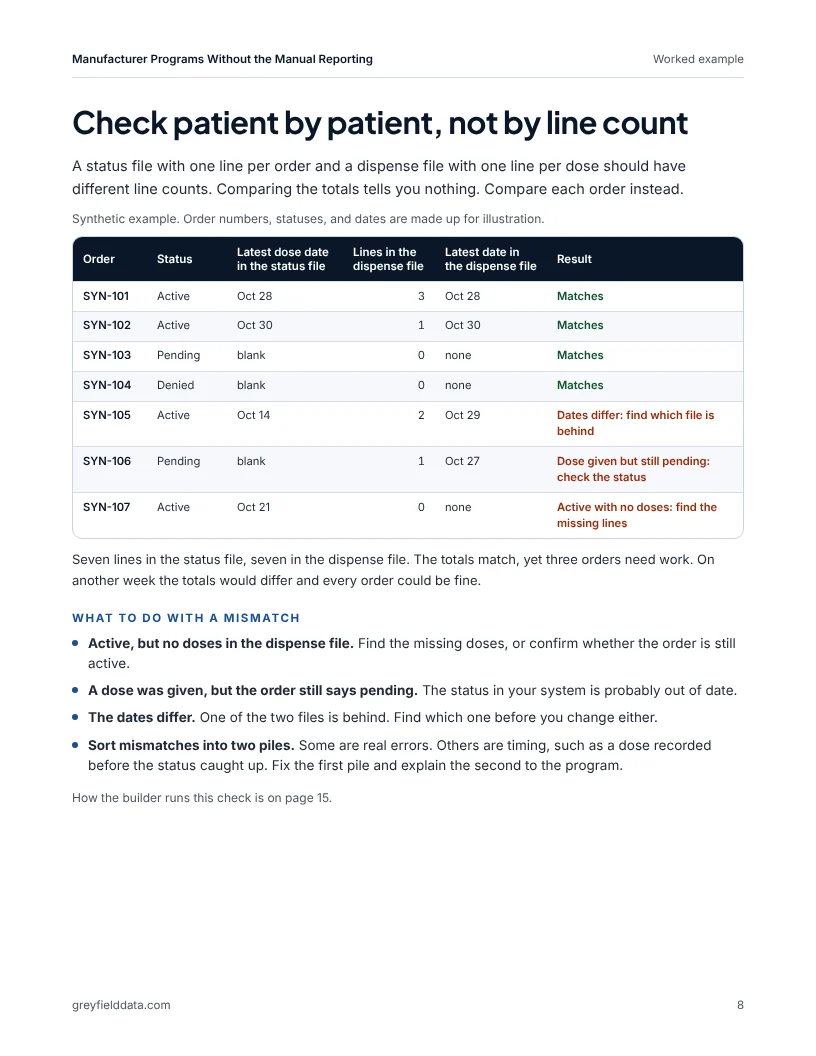
In the guide's synthetic example, both files have seven lines, and three orders still need work.
- one where the dates differ
- one marked pending that already has a dose
- one active order with no doses Some mismatches are real errors. Others are timing, such as a dose recorded before the status caught up. Fix the first kind and explain the second to the program. The status and dispense report counts guide walks through more cases.
How do you automate the weekly program files?
Build each file from a saved report and deliver it on a schedule:
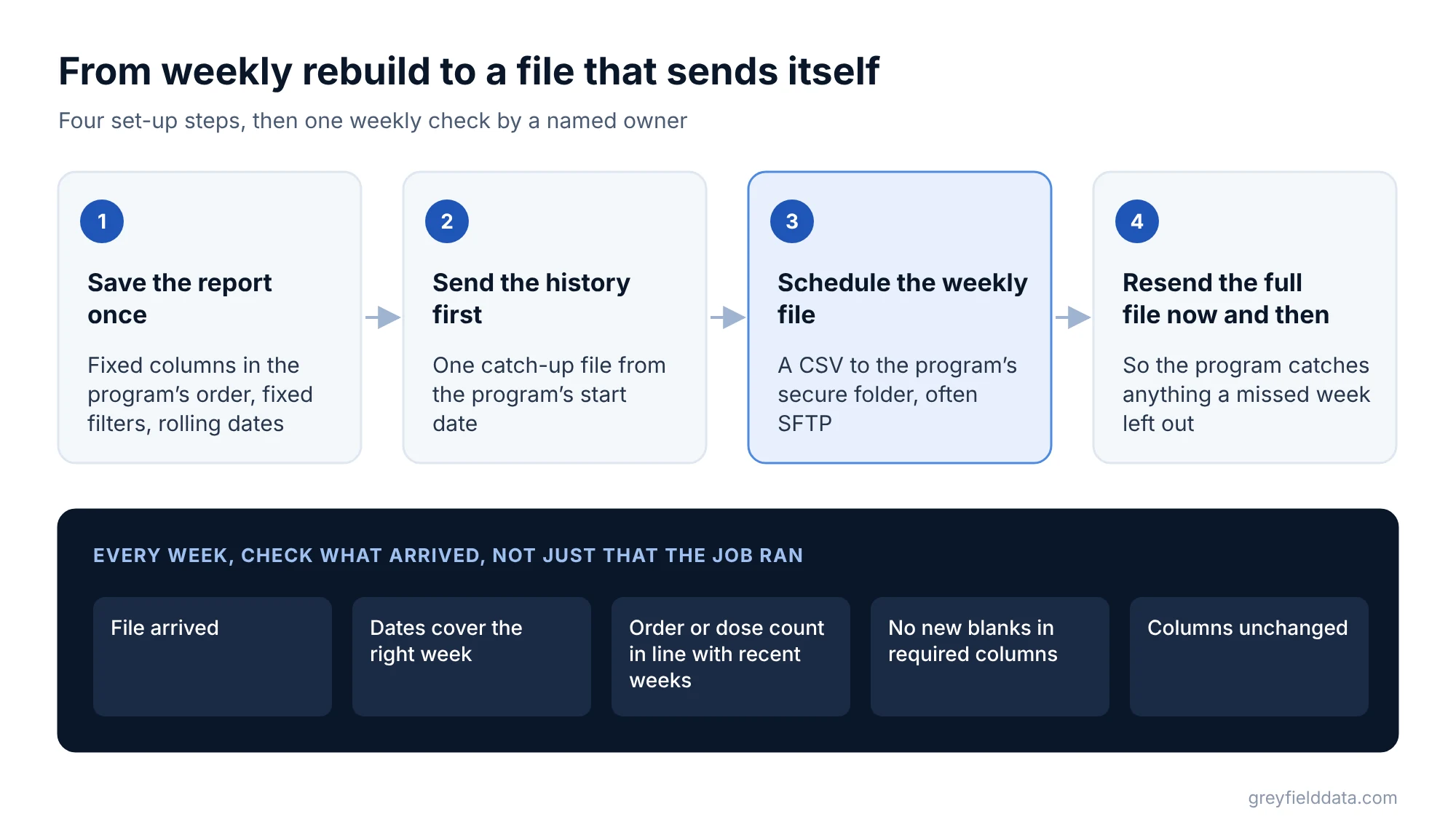
- Save the report once, with fixed columns in the program's order, fixed filters, and a date range that rolls forward on its own.
- Send the history first: one catch-up file from the program's start date.
- Schedule the weekly file as a CSV to the program's secure folder, often SFTP. Scheduling WeInfuse reports to SFTP walks through this in one system.
- Resend the full file now and then, so the program can catch anything a missed week left out. The full file vs changes-only guide explains how often.
| Approach | Each week's file has | Watch for |
|---|---|---|
| Everything, every time | Every line in scope | Bigger files, and more patient information moved than needed |
| Only what changed | Lines new or changed since the last file | Waiting orders that have no dose date yet |
| The last few days | Lines whose date falls in a fixed window | Changes older than the window are never resent |
Name an owner for the schedule and the login it uses, plus a backup, and decide where the program's rejection notes go. If a hub or prior authorization vendor pulls data from you directly, the guide to connecting hub vendors to WeInfuse lists the questions to ask first.
How do you keep automated files running?
Check what arrives, not just that the job ran.
Scheduled files stop when passwords expire, when the person who owns the schedule leaves, or when someone edits the saved report. The failure notice often goes to one inbox. Each week, confirm that:
- the file arrived
- the dates cover the right week
- the number of orders or doses is in line with recent weeks
- no required column has new blanks
- the columns have not changed
If the weekly rebuild still falls on your intake or pharmacy team, the infusion staffing planner shows what those hours are worth against patient care. The free infusion data readiness check shows where your reporting stands today.
Frequently asked questions
What is a dispense file for an infusion center?
It is a recurring report with one line per dose actually given: the date, product and NDC, units, site, prescriber, and payer. In these programs, dispense usually means given in the chair, not shipped from a pharmacy.
Why don't my status and dispense files have the same number of lines?
Because they count different things. The status file usually has one line per order, and the dispense file one line per dose, so an order with three doses has one status line and three dispense lines. Check them order by order instead.
What does "required if available" mean in a program specification?
The column is filled when your system has a value, and a blank is acceptable. Required columns, by contrast, must be filled on every line.
Does the patient file need a business associate agreement?
Where a file includes protected health information, a BAA should be in place before the first file goes out, and the file should include only the fields the agreement lists. Confirm the details with the program and your own counsel.
Is the guide free?
Yes. Enter your work email on the download page and the PDF downloads right away. The worked example uses synthetic data.
What to do next
Get the guide and run the checks on page 7 against your next file.
If you run WeInfuse, the WeInfuse reporting guide and the WeInfuse data guide explain where each file's lines come from, and WeInfuse reporting help covers building them. If you also want weekly numbers for your own operations, the Infusion Center Metrics Playbook covers the 12 to review every week. If your team rebuilds these files every week, or they keep coming back, book a call and bring the program's specification and the notes from the last file that came back.
Part of the Infusion analytics guides, a reading path through related articles.
Linus Tse
Founder of Greyfield Data. Built 400+ dashboards. Certified in Sigma, Snowflake, Tableau, and Power BI.
About Linus