Excel to Sigma migration: how to replace spreadsheet reports
Replace Excel reports with Sigma on Snowflake. Pick the sheets to move, translate formulas, turn manual inputs into input tables and check against the file.

Written by Linus Tse, founder of Greyfield Data
· 7 min read
On this page 10 sections
Replace an Excel report with Sigma when the same file gets rebuilt on a schedule from pasted data. Move the data into Snowflake tables, rebuild the calculations as Sigma formulas, turn manual entries into input tables, and compare the result against the spreadsheet before anyone stops using it.
We do this work as part of our Sigma consulting and Snowflake consulting. Linus is Sigma-certified, and Greyfield is an independent consultancy. In one project, a brokerage's daily market report went from about five hours a week of assembly to about thirty minutes (case study).
Key takeaways
- Move recurring reports, not every spreadsheet. A file rebuilt every day or week from exports is the best candidate.
- Sort each tab by its job: data, calculation, manual input or report. Each job has a different home in Sigma on Snowflake.
- Excel formulas mostly have Sigma equivalents, but Sigma works on columns, not cell ranges. Decide the level of each calculation before translating it.
- Manual entries such as forecasts and adjustments become Sigma input tables, which save to your warehouse.
- Validate cell by cell against the spreadsheet for the same dates, and log each difference as a fix or a known data question.
Which Excel reports should you replace with Sigma?
Replace the reports that are rebuilt on a schedule, depend on one person, or need history. Keep one-off analysis and scratch models in Excel, where they are quick to build and throw away.
| Signal | Move to Sigma? | Why |
|---|---|---|
| Rebuilt daily or weekly from pasted exports | Yes, first | The rebuild hours repeat every cycle |
| Only one person knows how to update it | Yes | The process stops when they are out |
| People ask "what did this say last month?" | Yes | Warehouse tables keep dated history |
| Several people email versions back and forth | Yes | One workbook replaces the copies |
| A one-off model for a single decision | No | It will not be rebuilt |
| A small sheet nobody else reads | No | The move costs more than it saves |
Start with the report whose rebuild costs the most hours. The reporting time calculator helps you put a number on that before you start.
How do you sort a spreadsheet before moving it?
Sort every tab by the job it does, because each job lands somewhere different. Most recurring workbooks have four kinds of tab: data that gets pasted in, calculations, manual inputs and the report people read.
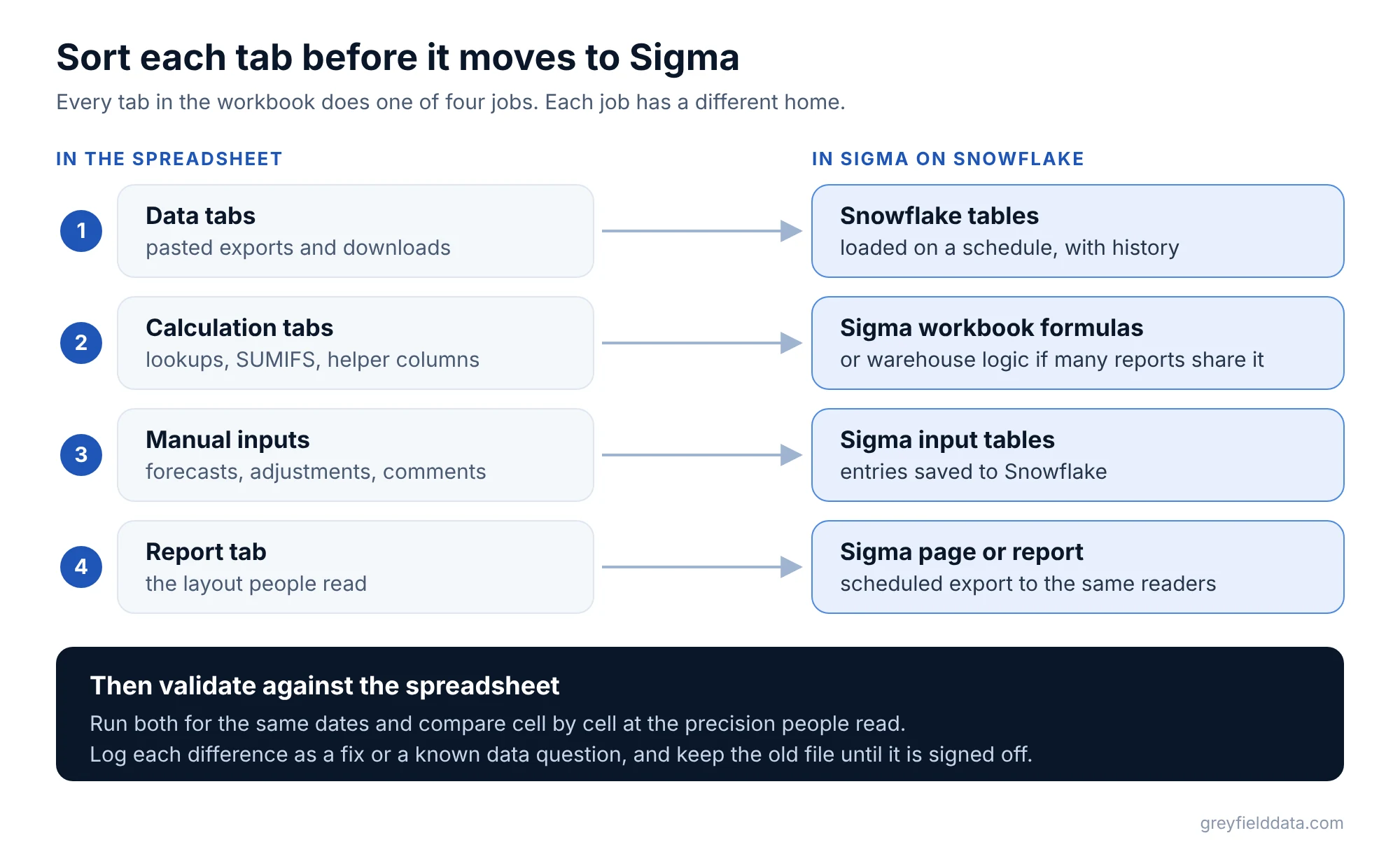
Data tabs hold exports pasted in from other systems. Load that data into Snowflake on a schedule instead, so nobody pastes anything. Keep each day's rows, which gives you history for free.
Calculation tabs hold lookups, conditional sums and helper columns. Rebuild them as Sigma formulas. If several reports share the same logic, put it in a warehouse table or a Sigma data model so it is defined once.
Manual inputs are the cells someone types into: a forecast, a price override, a comment. These become input tables.
The report tab is the layout people read. It becomes a Sigma workbook page, or a Sigma report when you need a fixed, paginated PDF.
How do Excel formulas translate to Sigma?
Most Excel functions have a Sigma equivalent, but the calculation runs on columns rather than cell ranges. Sigma describes its workbooks as combining "spreadsheet and BI capabilities", so the formula bar will feel familiar.
SUMIFS becomes SumIf, AVERAGE becomes Avg, and an exact-match XLOOKUP usually becomes Lookup. Our Excel to Sigma functions cheat sheet has worked examples and the traps, such as duplicate lookup keys and dates stored as text.
Three habits make translation easier:
- Name the level first. Decide whether each formula returns one value per row, per group or for the whole table.
- Replace hard-coded cells. A cell that holds "this month" becomes a date control or a formula on today's date.
- Retire helper columns. Many helper columns exist only to make a lookup work. Check whether a join or relationship replaces them.
For functions the cheat sheet does not cover, the Sigma functions list has every function by category.
What happens to manual inputs?
Manual inputs become Sigma input tables, which save each entry to your warehouse. Sigma describes input tables as "dynamic elements that support structured data entry".
There are three kinds. An empty input table starts blank. A CSV input table starts from an uploaded file. A linked input table sits next to existing data and matches rows on a key, which suits a comment or an adjustment per account.
Sigma writes input table data to a write schema that a warehouse admin sets up, and keeps an audit history of who changed what. That replaces the "who typed this?" question that every shared spreadsheet eventually raises. Your connection needs write access before any of this works.
For a one-time load of reference data, Sigma also supports CSV upload, with a default limit of 200MB. The help page covers CSV files, so save the tab as CSV first.
How do you validate Sigma against the spreadsheet?
Run both versions for the same dates and compare them cell by cell at the precision people read. Log every difference as either a fix or a known data question, so the conversation is about a list, not a feeling.
- Pick three to five past dates, including a month end and a day with unusual activity.
- Produce the spreadsheet and the Sigma version for each date.
- Compare the printed numbers, not the raw values. A difference in the fourth decimal place may not matter if the report shows two.
- Trace each difference to its cause: a formula, a data timing gap or an old error in the spreadsheet.
- Keep the spreadsheet available until the owner signs off.
Expect to find some errors in the spreadsheet itself. Hand-maintained files drift. Decide in advance who rules on which number is right. Our migration validation guide has a fuller checklist.
What did this look like in a real project?
A commodity brokerage assembled its daily market report in a spreadsheet and sent it as a static sheet. Readers could see the day it was sent and nothing else, and the process depended on one workbook and the person who kept it.
We built report tables in Snowflake so each report reads a dated table instead of formulas inside a spreadsheet. We rebuilt the layout in Sigma and added a date picker over two years of history. Refresh and distribution run on a schedule.
We validated the rebuilt report against the original spreadsheet cell by cell, at the printed precision. Both daily reports were live about a month into the engagement. Producing the report went from about five hours a week to about thirty minutes. The daily market report case study has the details.
Can people still get an Excel file?
Yes. Sigma can send or schedule exports of an element, page or whole workbook in Excel format, as well as CSV and PDF, to email, Slack, Google Drive and other destinations. Readers who want a file in their inbox keep getting one, built from the same tables as the workbook.
What to do next
Pick the spreadsheet report that costs your team the most hours each week and list its tabs by job. Run its numbers through the reporting time calculator to see what the rebuild is worth. Then book a call with Linus and bring the file.
Frequently asked questions
Can Sigma replace Excel?
For recurring reports built on warehouse data, yes. Sigma workbooks use spreadsheet-style formulas on Snowflake tables, and input tables replace typed-in cells. Keep Excel for one-off models and scratch work.
Can I upload an Excel file to Sigma?
Sigma's documented upload path is CSV, with a default limit of 200MB, so save the sheet as CSV first. For data that changes every day, load it into Snowflake on a schedule instead of uploading it by hand.
Do Excel formulas work in Sigma?
Not as typed, but most have close equivalents, such as SumIf for SUMIFS and Lookup for an exact-match XLOOKUP. Sigma formulas work on columns, so decide the level of each calculation first.
How long does an Excel to Sigma migration take?
It depends on the number of reports and how clean the source data is. In our brokerage project, both daily reports were live about a month in. Our guide on how long a Sigma migration takes covers the factors.
Part of the Sigma guides, a reading path through related articles.
Linus Tse
Founder of Greyfield Data. Built 400+ dashboards. Certified in Sigma, Snowflake, Tableau, and Power BI.
About Linus