Sigma Input Tables: Write-Back for Budgets, Forecasts, and Overrides
How Sigma input tables write data back to your warehouse, which type to pick, how to build a simple approval step, and when budgets or overrides belong in one.

Written by Linus Tse, founder of Greyfield Data
· 8 min read
On this page 10 sections
Every finance team has the spreadsheet that sits next to the dashboard. The forecast lives there, the manual adjustments live there, and someone pastes them back into the warehouse at month end. Sigma input tables put that grid inside the workbook and write what people type to your warehouse.
They save the copy-paste step, but only if you set up the write destination, permissions, and keys properly. If you want help building a budget or forecast workflow this way, that's part of our Sigma Computing consulting work.
Key takeaways
- Sigma input tables are workbook elements for structured data entry. Sigma writes the data to a write schema in your warehouse, with an edit log, and doesn't overwrite your source data.
- There are three types: empty, CSV (up to 200 MB, UTF-8), and linked. A linked input table adds editable columns next to rows from another element, matched on a primary key.
- An admin must turn on write access for the connection first. Sigma recommends a dedicated writeback schema.
- By default only people with Can edit access can enter data, and only in the draft. You can allow edits in the published version per table.
- Sigma has no built-in approval button. You can build one with a single-select status column and an Update row(s) action.
What is a Sigma input table?
A Sigma input table is a grid in a workbook where people type or paste values, and Sigma saves them to your data platform. You can use the result as a source for tables, pivot tables and charts, or bring it into other data with Lookup and joins.
Input tables support keyboard entry, pasting up to 2,000 rows and 25 columns, data validation, protected columns, and data entry permissions. Columns can be text, number, date, checkbox, or multi-select for entry, plus calculation and lookup columns, and system columns such as Last updated by, per Sigma's overview.
Which type of input table should you use?
Use a linked input table when people are adding numbers next to existing rows, such as a forecast for each department. Use an empty or CSV input table when the data has no home in the warehouse yet.
| Type | Starts from | Can add rows? | Good for |
|---|---|---|---|
| Empty | Nothing | Yes | Mapping tables, small lists, a target per region |
| CSV | An uploaded file (max 200 MB, UTF-8) | Yes | Last year's budget file you want to keep editing |
| Linked | Rows of another element in the workbook | No, rows come from the source | Forecasts, overrides, and comments on existing records |
Pick the primary key carefully
A linked input table matches each row to one row in the parent through a primary key. Sigma's docs warn that if the key is duplicated, changed, or converted differently, existing input can appear to be missing.
Use a record ID or another stable unique value. Sigma says to avoid dates and timestamps, generated row numbers, and anything that can change, such as names, statuses, or categories.
How does Sigma write input table data back to the warehouse?
Sigma writes input table data to the write schema configured on the connection, and keeps a separate edit log for each table in the same schema. Those tables have names that start with SIGDS_, and Sigma says not to modify them.
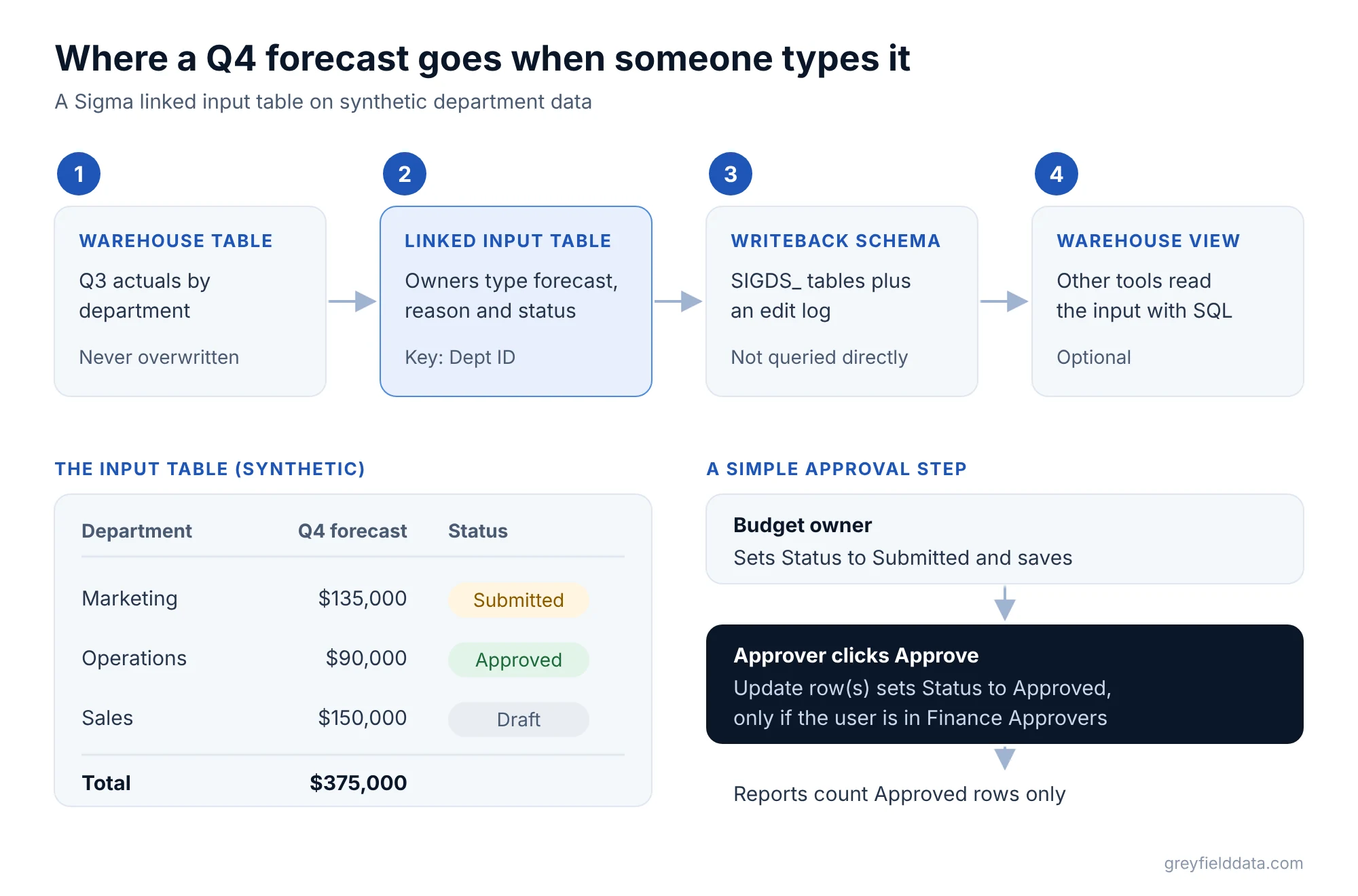
Three things about storage that trip people up:
- You can't query the stored tables directly. They're optimized for storage. To read input data from SQL or another tool, create a warehouse view for the input table.
- Deleting the element doesn't delete the data. Sigma leaves the rows in your data platform. You remove them there.
- Copies get new IDs. Duplicating the workbook, creating a tagged version, restoring a version, or swapping the connection replaces the input table with a copy, per the audit history docs.
Turn on write access first
An admin turns it on under Administration > Connections, edits the connection, and switches on Enable write access. The warehouse side differs for Snowflake, BigQuery, Databricks, Redshift, PostgreSQL, MySQL and AlloyDB. Sigma reserves the write schema for its own objects and hides it from the data catalog, so don't point it at a schema people use for reporting.
OAuth connections have extra steps, covered in About OAuth with write access.
A synthetic example: a Q4 department forecast
Here is a small synthetic forecast. Actuals come from the warehouse. Forecast, reason, and status are typed in.
| Dept ID | Department | Q3 actual | Q4 forecast | Override reason | Status |
|---|---|---|---|---|---|
| D-10 | Marketing | $120,000 | $135,000 | Holiday campaign | Submitted |
| D-20 | Operations | $88,000 | $90,000 | Approved | |
| D-30 | Sales | $140,000 | $150,000 | Two new hires | Draft |
The Q4 forecast totals $375,000 against $348,000 of Q3 actuals.
To build it:
- Make a table of departments and Q3 actuals from your warehouse.
- Click Add element, and under Input tables choose Linked. Pick the departments table as the source.
- Choose
Dept IDas the primary key, and linkDepartmentandQ3 actual. - Add a number column for
Q4 forecastand a text column forOverride reason. - Add a single-select column for
Statuswith the options Draft, Submitted, and Approved. - Add the Last updated by and Last updated at columns so you can see who changed each row.
Who can edit an input table?
Editing depends on the account type, workbook access, and the table's data entry permission. Both drafts and published versions require the Edit input tables permission on the account type, per Edit input table data.
| Data entry permission | Who can enter data | Where |
|---|---|---|
| Editable in draft (default) | Users with Can edit access | Workbook draft only |
| Editable in published version (restricted) | Users with Can explore or Can edit access | Published version, including custom views |
| Editable in published version (all access levels) (Beta) | Anyone with access to the workbook | Published version, including custom views |
You change it with the Editable in label on the table, then publish. Sigma's data entry permission page notes that a table can't take entries in the draft and the published version at the same time.
For a forecast that budget owners fill in, the restricted published option is usually the right one. Owners enter numbers in the published workbook and click Save, and nobody needs edit access to the workbook design.
How do you build an approval workflow on an input table?
Sigma has no approval feature for input tables, so you build one from a status column and an action. The pattern below uses features Sigma documents, but test it with your own teams before relying on it.
- Keep the
Statussingle-select column from the example. Budget owners set their row to Submitted. - Add a table that shows Submitted rows, and a button labeled Approve.
- On the button, add an Update row(s) action. Target the input table, update the row whose
Dept IDmatches the selected row, and setStatusto Approved. - Add a condition to the action sequence with a custom formula such as
CurrentUserInTeam("Finance Approvers"), so the update only runs for approvers. - Downstream, report only rows where
Status = "Approved".
Sigma notes that users who can open a workbook can usually trigger its actions, which is why the condition matters. The edit history column and the audit history view show who changed what and when.
When should you use input tables, and when not?
Use input tables when people add judgment to warehouse data: plans, adjustments, labels, and mappings. Don't use them as a replacement for the system that owns a transaction.
| Use case | Fit | Why |
|---|---|---|
| Department budgets and targets | Good | Small, owned by named people, changes a few times a year |
| Rolling forecasts | Good | Linked rows next to actuals, with edit history |
| Manual overrides with a reason | Good | Keeps the override and the reason next to the record |
| Mapping tables (account to reporting line) | Good | Finance owns the mapping, not engineering |
| Editing invoices or orders | Poor | The source system should own those records |
| High-volume event data | Poor | Input tables are for typed and pasted entries |
If the edits need to reach other tools, a warehouse view on the input table is the hand-off point. We set this up in Snowflake for teams who want the forecast in the same place as the actuals.
For formulas that compare forecast to actual, the Sigma functions list and the Excel to Sigma functions cheat sheet cover Lookup, SumIf and the rest. To restrict which rows each owner sees, see row-level security in Sigma. The Sigma vs Omni comparison covers how write-back differs between the two.
Frequently asked questions
Do Sigma input tables write back to Snowflake?
Yes. With write access enabled on the connection, Sigma writes input table data and an edit log to the write schema you configure. Snowflake, BigQuery, Databricks, Redshift, PostgreSQL, MySQL and AlloyDB all have write access setup pages.
Can I query Sigma input table data from SQL or another tool?
Not from the stored tables directly. Create a warehouse view for the input table, then query the view.
Does an input table overwrite my source data?
No. Sigma stores input data in its own write schema. A linked input table adds columns next to the source rows without changing the source table.
Can viewers edit a Sigma input table in the published workbook?
Yes, if you set the table to Editable in published version. The restricted option allows Can explore and Can edit users; the all access levels option, in beta, allows anyone with access.
Does Sigma have approval workflows for input tables?
There's no built-in approval feature. A single-select status column plus an Update row(s) action with a condition gives you a simple approve step.
What to do next
Start with one forecast that already lives in a spreadsheet next to a Sigma dashboard. Build it as a linked input table with a status column, and have one budget owner use it for a cycle. If you want help designing the write schema, permissions and approval step, book a call with me.
Part of the Sigma guides, a reading path through related articles.
Linus Tse
Founder of Greyfield Data. Built 400+ dashboards. Certified in Sigma, Snowflake, Tableau, and Power BI.
About Linus