Sigma Row-Level Security: User Attributes, Teams, and Warehouse Rules
How to set up row-level security in Sigma with user attributes or teams, where to put the filter so it holds, and when warehouse rules are the better choice.

Written by Linus Tse, founder of Greyfield Data
· 8 min read
On this page 10 sections
A regional manager should see their region. A sales rep should see their own deals. The VP should see everything. In Sigma you get there with a formula column, a filter, and a place to put both where nobody downstream can remove them.
The rules are short, but where you put the filter decides whether it actually protects anything. If you want help designing access for a Sigma rollout, that's part of our Sigma Computing consulting work.
Key takeaways
- Sigma row-level security (RLS) is a formula column that returns True or False for the person viewing, plus a filter that keeps only True rows. Sigma's Set up row-level security page lists three bases: user attributes (recommended), team membership, and user email.
- Put the RLS column and filter in a data model, not in the workbook people view. Sigma warns that anyone viewing a table can modify its filter, so only child elements and downstream sources are fully protected.
- Never apply RLS with a control element in a data model. A downstream workbook can change a control's value through a source parameter.
- User attributes are assigned in Administration > User Attributes to users or teams. A user with no value and no default gets an empty string, so they match no rows.
- If your warehouse already has row rules, Sigma can respect them: through OAuth, or by switching the connection role per user with a
Roleuser attribute.
How does row-level security work in Sigma?
Row-level security in Sigma is a calculated column that checks the current viewer against a value in each row, and a filter that keeps only the rows where that check is True. You build both in a data model table, workbook data element, or dataset, according to Sigma's RLS docs.
The column formula uses one of three system functions:
| Basis | Formula pattern | Best for |
|---|---|---|
| User attribute (recommended) | CurrentUserAttributeText("Region") = [Region] |
Regions, customers, business units, anything you assign by value |
| Team membership | CurrentUserInTeam([Team Assignment]) |
Access that already follows your Sigma teams |
| User email | [Rep Email] = CurrentUserEmail() |
Each person sees only their own rows |
Sigma recommends user attributes because the assignment of values lives in the Administration portal, separate from the formula. You change who sees what without editing a data model. CurrentUserAttributeText returns the attribute as text, so the column you compare against must also be text.
A synthetic example: five orders, three viewers
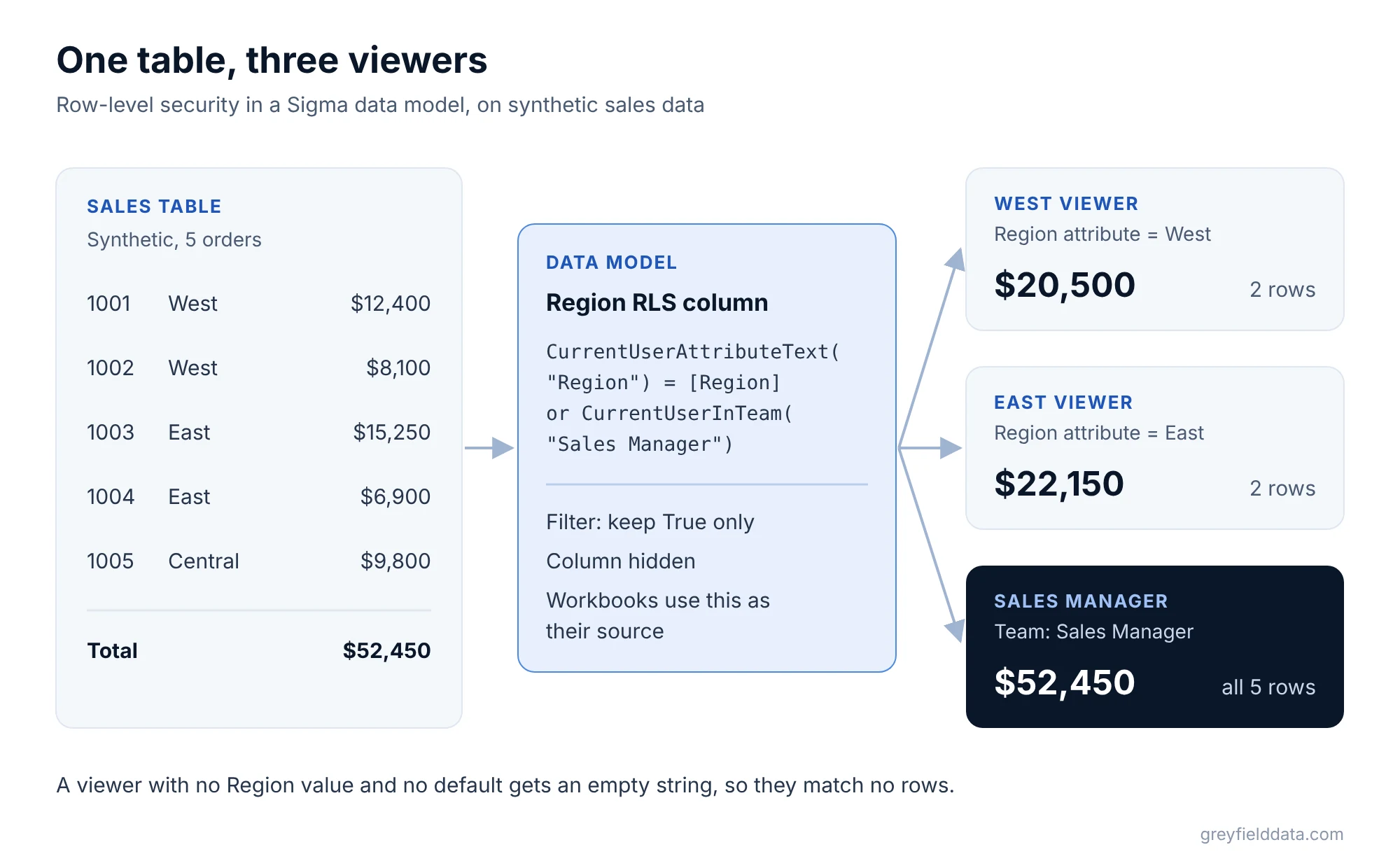
Here is a small synthetic sales table. The names and numbers are made up.
| Order | Region | Rep email | Amount |
|---|---|---|---|
| 1001 | West | ana@example.com | $12,400 |
| 1002 | West | dev@example.com | $8,100 |
| 1003 | East | ben@example.com | $15,250 |
| 1004 | East | ben@example.com | $6,900 |
| 1005 | Central | kim@example.com | $9,800 |
Three viewers open the same workbook. A member of the Sales US-West team has the Region attribute set to West. A member of Sales US-East has East. A member of the Sales Manager team should see every row.
How do you set up RLS with user attributes?
Create the attribute, assign values, then add the column and filter in the data model. You need the Admin account type or the Manage user attributes permission for the first two steps, per Configure user attributes.
Go to Administration > User Attributes and click Create Attribute. Name it
Region. Leave Default Value empty unless everyone should get one.Select the attribute, click Assign Attribute, pick the Sales US-West team, and enter
Westas the Assigned Value. Repeat for East and Central.In the data model, add a column called
Region RLS:CurrentUserAttributeText("Region") = [Region]Add a filter on
Region RLSthat keeps onlyTrue.Hide
Region RLSso downstream users don't see it by default.
In the synthetic table, the West viewer now gets orders 1001 and 1002, $20,500 in total. The East viewer gets 1003 and 1004, $22,150.
Let managers see everything
Sigma's docs show RLS rules combined with or. To give the Sales Manager team every row while everyone else stays filtered by region:
CurrentUserAttributeText("Region") = [Region] or CurrentUserInTeam("Sales Manager")
The manager sees all five orders, $52,450. Team names in CurrentUserInTeam are case-sensitive, so "sales manager" won't match.
When one person sits on two teams
Attribute values take effect in priority order on the Teams Assigned tab, top to bottom. A value assigned directly to a user overrides values from their teams. If someone is on both the West and East teams, drag the team that should win to the top.
How do you set up RLS by team or by user?
Use team-based RLS when access already follows your Sigma teams. You add two columns: one that maps each row to a team name, and one that checks membership.
Switch([Region], "West", "Sales US-West", "East", "Sales US-East")
Call that Team Region, then add Team RLS:
CurrentUserInTeam([Team Region])
Filter Team RLS to True and hide both columns. The downside is that a new region means editing the Switch formula, where a user attribute only needs a new assignment.
For rep-level access, compare an email column in your data with CurrentUserEmail:
[Rep Email] = CurrentUserEmail()
This only works if the email in your data matches the email on the person's Sigma account.
Where should the RLS filter live?
The RLS filter belongs in a data model or dataset that workbooks use as a source. Sigma's warning is direct: a filter can be modified by anyone viewing the table it's applied to, so only child elements and downstream data sources count as fully protected.
| Placement | Protected? | Why |
|---|---|---|
| Filter on a table in a data model, used as a workbook source | Yes | All workbooks that rely on the data model are protected |
| Filter on a workbook table that viewers open directly | No | Anyone viewing that table can change its filter |
| Filter on a child element of a filtered parent | Yes | The parent's filter is applied before the child |
| A control element in a data model | No | A downstream workbook can change the control through a source parameter |
For custom SQL, Sigma supports the same attribute inside the query:
WHERE STORE_REGION = {{#formula CurrentUserAttributeText('Region')}}
Should you use warehouse-level or Sigma-level controls?
Use warehouse-level controls when the warehouse already enforces row rules that other tools also rely on. Use Sigma-level RLS when the rule only matters inside Sigma, or when the people managing it are Sigma admins rather than database admins.
| Approach | How it works | Watch for |
|---|---|---|
| Sigma RLS with user attributes | Formula column and filter in a data model | Lives in Sigma only; other tools reading the same tables need their own rules |
| OAuth connection | Sigma respects existing RLS rules in your data platform, per the RLS docs | Each user authenticates to the warehouse as themselves |
| Role set by user attribute | A Role attribute picks the warehouse role each user or team runs queries as, per Dynamically assign roles |
Key pair authentication only, not OAuth, and not every platform supports it |
| Snowflake query variables (Beta) | Sigma sets a SQL variable on every query that a Snowflake row access policy reads, per Restrict access to data in embedded content | Not available on OAuth connections |
You can combine them. Sigma's docs note that several options can be used together, for example a warehouse role per customer and a Sigma RLS column for region within that customer.
Columns are a separate layer. If some users shouldn't see a salary or margin column at all, look at column-level security rather than hiding columns.
What breaks RLS in Sigma?
Most RLS problems come from attribute changes and type mismatches, not from the formula.
- Renaming or deleting an attribute. Sigma's docs say existing RLS formulas then evaluate to
null. Plan renames like a schema change. - No value assigned. With no value and no default,
CurrentUserAttributeTextreturns an empty string. The user sees nothing, which is the safe failure but a confusing one. - Type mismatch. The attribute is text. If
[Region]is a number code, convert one side before comparing. - Sensitive values. Sigma advises against storing passwords, keys, or tokens in user attributes, because values can appear in titles and exports.
Test by viewing the workbook as each kind of user before you share it. Our Sigma migration validation guide covers access checks alongside number checks if you're moving from Tableau or Power BI.
If you embed Sigma for customers, the same attributes get passed in a signed token. See how to embed Sigma dashboards. For the full list of system functions, see the Sigma functions list.
Frequently asked questions
What is row-level security in Sigma Computing?
It restricts which rows each person sees based on who they are. You add a column that compares the viewer's user attribute, team, or email to a value in each row, then filter to True.
Should I use user attributes or teams for Sigma RLS?
Sigma recommends user attributes, because values are assigned in the Administration portal separately from the formula. Teams work well when access already matches your Sigma teams, but new teams often mean editing a formula.
Does Sigma respect row access policies in Snowflake?
With an OAuth connection, Sigma respects existing RLS rules in your data platform. Without OAuth, you can switch the warehouse role per user with a Role attribute on key pair connections, or use Snowflake query variables, which are in beta.
Can a viewer remove a row-level security filter in Sigma?
They can change a filter on a table they're viewing directly. That's why Sigma recommends putting RLS in a data model or dataset, where workbooks built on it are protected.
What happens if a user has no attribute value?
If there is no assigned value and no default, the function returns an empty string, so the RLS column is False for every row and the user sees no data.
What to do next
Pick one data model, add a Region attribute with values for two teams, and view the workbook as a member of each before you add more rules. If you're deciding between warehouse rules and Sigma rules for a wider rollout, book a call with me or see our Sigma Computing consulting work.
Part of the Sigma guides, a reading path through related articles.
Linus Tse
Founder of Greyfield Data. Built 400+ dashboards. Certified in Sigma, Snowflake, Tableau, and Power BI.
About Linus