How to Embed Sigma Dashboards in Your App or Customer Portal
How to embed Sigma dashboards in an app or customer portal, the difference between public and secure embeds, and how to show each customer only their own data.

Written by Linus Tse, founder of Greyfield Data
· 8 min read
On this page 10 sections
Your customers ask for a report, so someone on your team exports it every week and emails it out. Embedding puts the Sigma dashboard inside your own app, so each customer logs in to your portal and sees their numbers, live, without a Sigma login.
The embed itself is a signed URL in an iframe. The work is in deciding who each user is to Sigma and which rows they can see. If you want a second pair of eyes on an embed design, that's part of our Sigma Computing consulting work.
Key takeaways
- Sigma has two kinds of embed: public, which anyone with the URL can open, and secure, which uses a signed JSON Web Token (JWT) from your server.
- Secure embedding is a premium feature you ask your Sigma account executive to enable. It's the only option for embedding a data model or report.
- Your server signs a one-time JWT with the embed client ID and secret, then your page loads the Sigma URL in an iframe. Sigma rejects a reused token.
- Per-customer filtering uses the same tools as internal row-level security. Pass a
user_attributesclaim such as a customer ID, and filter a data model on it. - Set
account_typefor embed users. If you leave it out, Sigma defaults embed users to the highest account type.
What are the ways to embed Sigma?
Sigma supports public and secure embedding, per its intro to embedded analytics. Choose public only for data you'd be happy to post on a website.
| Public embed | Secure embed | |
|---|---|---|
| Who can open it | Anyone with the URL or access to the host page | Users your server signs a token for |
| What you can embed | A workbook, page, or element | A workbook, page, element, data model, or report |
| Per-user data | No | Yes, through JWT claims, teams and user attributes |
| Exports | PNG and PDF only, no Excel or CSV | Controlled by the account type's permissions |
| Who sets it up | An Admin, with public embedding enabled for the org | An Admin or someone with embed credentials |
For a customer portal, use a secure embed.
How does a secure Sigma embed work?
A secure embed is a Sigma URL with a signed JWT attached, loaded in an iframe in your app. Sigma's secure embed page describes five steps.
- The user logs in to your application.
- Your front end asks your back end for a token.
- Your back end signs a JWT with your embed client secret and returns it.
- Your front end loads the Sigma URL with the JWT as a URL parameter.
- Sigma checks the token and returns content for that user.
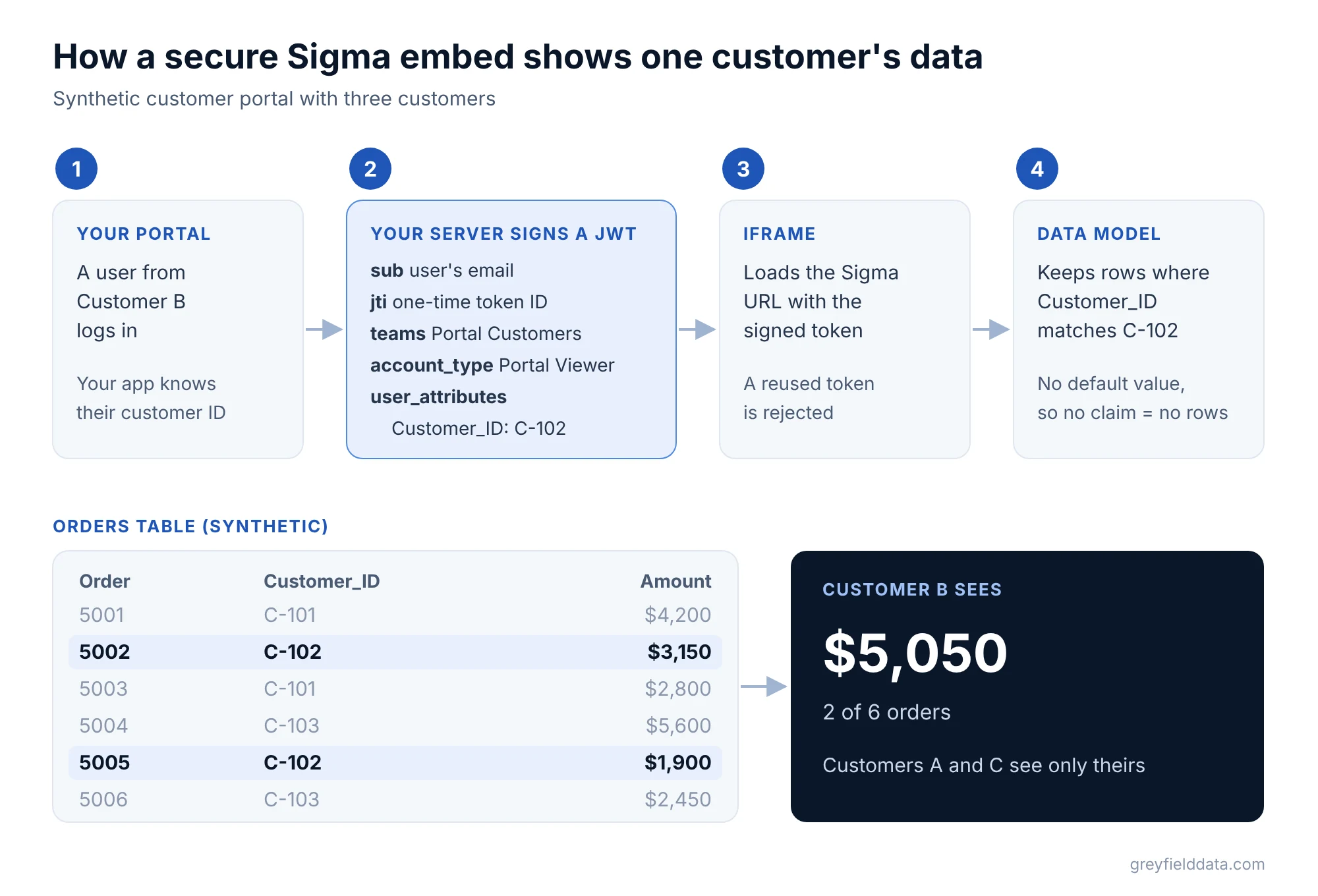
Each token carries a jti, a unique ID. Sigma stores it and rejects any token whose jti it has already seen, so a copied URL can't be replayed.
What do you need before you build a secure embed?
You need embed credentials, a team for embed users, a published workbook shared with that team, and a server that can sign tokens. Sigma's workflow runs in this order:
- Generate embed client credentials: a client ID and a secret.
- Decide how to manage access. Most portals use automatic user management, where Sigma creates an embed user from the email in the token.
- Create a team, such as
Portal Customers, and share the published workbook (or a tagged version) with it. Sigma recommends sharing with teams rather than individual users. - Build the embed URL for the workbook, page or element.
- Test it in the embed sandbox, which shows the content from the embed user's point of view.
- Write the server-side code that signs tokens, and load the result in an
<iframe>.
The sandbox is under Share and export > Embedding in the workbook menu, on the JSON Web Tokens tab. Test the filter there before any code ships.
Which JWT claims matter for a customer portal?
Six or seven claims do most of the work. The full list is in Sigma's JWT claims reference.
| Claim | What it does | Notes |
|---|---|---|
sub |
The user's email | Required |
jti |
Unique token ID | Required; blocks replay |
iat, exp |
Issued and expiry times | Required; exp can be at most 30 days after iat |
kid |
Your embed client ID | Required, in the header |
teams |
Teams the embed user belongs to | Needed so automatic users can be created |
account_type |
The embed user's account type | Defaults to the highest account type if missing |
user_attributes |
Attribute values, such as a customer ID | Drives row-level filtering |
The signing algorithm must be HS256. With ver set to "1.1", the aud claim is required and must be sigmacomputing.
Here is a synthetic payload for a user at Customer B:
{
  "sub": "ops@customer-b.example",
  "jti": "5d2f1c9e-0b7a-4c1e-9a33-2f6b8e1d4a70",
  "iat": 1794211200,
  "exp": 1794214800,
  "ver": "1.1",
  "aud": "sigmacomputing",
  "teams": ["Portal Customers"],
  "account_type": "Portal Viewer",
  "user_attributes": { "Customer_ID": "C-102" }
}
Portal Viewer stands for a custom account type you create with only the permissions customers need. This token expires one hour after it's issued.
How do you show each customer only their own data?
Filter a data model on a user attribute, then pass that attribute in the token. It's the same row-level security setup you'd use for internal teams.
Take a synthetic orders table with six rows across three customers:
| Order | Customer_ID | Amount |
|---|---|---|
| 5001 | C-101 | $4,200 |
| 5002 | C-102 | $3,150 |
| 5003 | C-101 | $2,800 |
| 5004 | C-103 | $5,600 |
| 5005 | C-102 | $1,900 |
| 5006 | C-103 | $2,450 |
In Administration > User Attributes, create
Customer_IDwith no default value.In the data model, add a column
Customer RLS:CurrentUserAttributeText("Customer_ID") = [Customer_ID]Filter it to True and hide the column. Build the portal workbook on this data model.
In your server code, set
user_attributes.Customer_IDfrom the logged-in user's account in your app.
The Customer B user sees orders 5002 and 5005, $5,050 in total. Because the attribute has no default, a token that forgets the claim shows no rows rather than everyone's.
Sigma's embedded data access page lists other ways to restrict data, and you can combine them:
- Warehouse roles. A
Roleuser attribute picks the warehouse role per customer, for example when each customer has their own schema. Key pair connections only. - A warehouse per customer. On Snowflake, a
Warehouseattribute can route each customer's queries to their own virtual warehouse, which separates compute costs. - Snowflake query variables (Beta). Sigma sets a SQL variable that a Snowflake row access policy can read.
- Column-level security. Hide whole columns from some teams.
Don't use claims to switch views mid-session
Sigma's docs warn that JWT claims belong to a user, not a session. Each person needs their own account, with the same claim values across every embed. Don't reuse one embed user and change the Customer_ID to show a different customer.
How do you control what the embed looks like?
You control the look with URL parameters and iframe settings. The embed URL parameters include :theme to apply a workbook theme, :menu_position to place or remove the toolbar, and :hide_tooltip for chart tooltips.
Hiding a menu is not the same as removing a permission. Sigma notes that :hide_send hides the download option but doesn't stop downloads, and :hide_schedule doesn't stop scheduling. Use account type permissions for that. Sigma also says page PDFs and element PNGs can't be fully blocked, since anyone can take a screenshot.
To pre-fill a control, such as a date range, add it as a URL parameter. For a React app, Sigma publishes an Embed SDK for React that wraps the lower-level JavaScript Embed API.
How does Sigma embedding compare with other tools?
The basic pattern is common: a signed URL in an iframe, with user attributes that filter rows. Omni's embedding docs, for example, describe a URL that carries the user's ID and attributes and is signed with a secret key. The differences that matter for a portal are in what the embedded user can do once inside, such as exploring, building, or entering data.
We compare the two tools in detail in Sigma vs Omni. If you're moving a portal off Tableau or Power BI, Sigma vs Tableau and the Sigma migration readiness check are good places to start.
Frequently asked questions
Can I embed a Sigma dashboard without users logging in to Sigma?
Yes. A secure embed authenticates users through your application with a signed JWT, so they never see a Sigma login. A public embed also needs no login, but anyone with the URL can view it.
Is Sigma embedding included in every plan?
Sigma describes secure embedding as a premium feature that your Sigma account executive enables. Public embedding must be turned on by an admin.
How do I filter a Sigma embed by customer?
Create a user attribute such as Customer_ID, add a row-level security column and filter in the data model, and pass the attribute in the user_attributes JWT claim for each user.
How long can a Sigma embed token last?
The exp claim can be no more than 30 days after iat. Each token also has a unique jti that Sigma won't accept twice.
Can embed users export data from Sigma?
It depends on their account type. Set account_type to one with only the export permissions you want, because hiding a menu option with a URL parameter doesn't remove the permission.
What to do next
Build the portal workbook on a data model with a Customer_ID filter, and test two customers in the embed sandbox before writing server code. If you're planning a customer-facing analytics portal and want help with the access design, book a call with me.
Part of the Sigma guides, a reading path through related articles.
Linus Tse
Founder of Greyfield Data. Built 400+ dashboards. Certified in Sigma, Snowflake, Tableau, and Power BI.
About Linus