Free agent skills for building Sigma workbooks: design in HTML, build, then QA
Three free, open-source agent skills that teach Claude, Cursor and other AI agents how we build client-ready Sigma workbooks. Design in HTML first, build to match, then QA.

Written by Linus Tse, founder of Greyfield Data
· 6 min read
On this page 7 sections
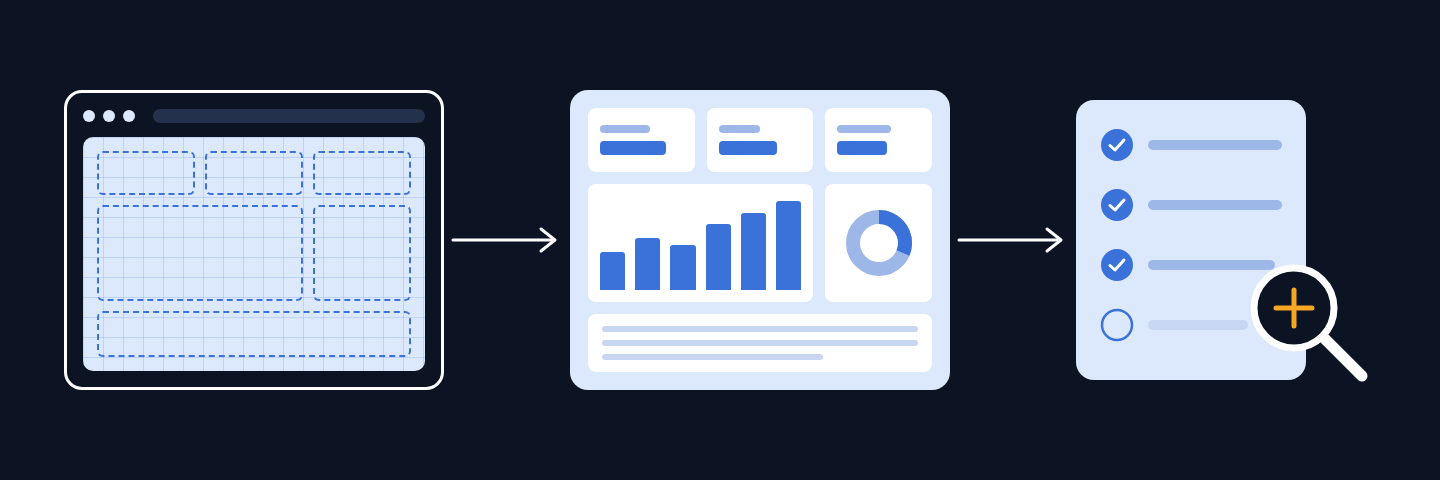
I've open-sourced the three agent skills I use to build Sigma workbooks with AI. They teach Claude, Cursor, or any agent that reads a SKILL.md file the same process I use on client work: design the workbook in HTML first, build it in Sigma to match, then QA it before anyone sees it. They're free, MIT licensed, and work on any Sigma org.
Install them with one command:
npx skills add linerss/sigma-skills
Or browse the code on GitHub.
Key takeaways
- Three skills, one repo:
sigma-html-benchmarkdesigns the workbook,sigma-buildbuilds it, andsigma-workbook-qachecks it. - HTML first. Changing a layout in HTML takes minutes. Changing it in a Sigma workbook takes hours. Agree on the design before anything is built.
- The agent asks before it guesses. Each skill interviews you one question at a time about the reader, the metrics, the pages, and who has access.
- The build has to match the design pixel for pixel, measured at the same screen width, and every headline number is tied out against the warehouse.
- The agent checks Sigma's docs before relying on a feature, because Sigma ships changes every week.
What is an agent skill?
A skill is a folder with a SKILL.md file: plain instructions an AI agent loads when a task matches. Claude, Claude Code, Cursor, and other agents support them. You don't write code to use one. You ask for something like "design a sales dashboard in Sigma for our regional managers," and the agent follows the skill's steps instead of improvising.
Without a skill, an agent will happily build you a Sigma workbook. It just builds a generic one: default titles, a KPI with no comparison, a chart nobody asked for, and numbers nobody checked. The skills are how I stop that.
The three skills
| Step | What it does | You're done when |
|---|---|---|
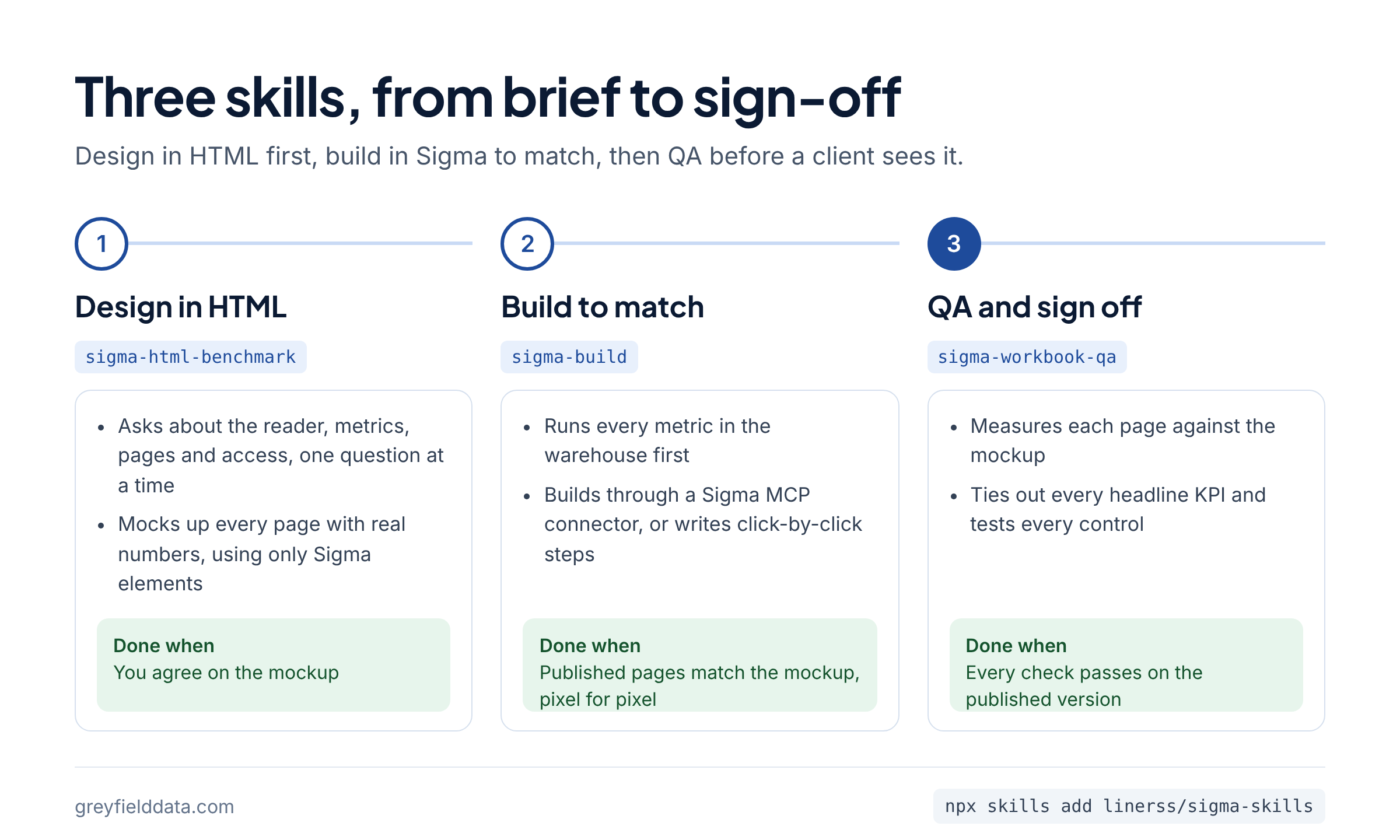
| Design | Interviews you, profiles the data, and designs every page as an HTML mockup with real numbers, using only elements Sigma has | You've agreed on the mockup |
| Build | Builds the workbook to match the mockup, through a Sigma MCP connector if you have one, or as click-by-click steps for the Sigma editor | The published pages match the mockup |
| QA | Renders every page, names defects, ties out every headline KPI, and exercises every control | Every item on the sign-off checklist passes |
1. sigma-html-benchmark: design it in HTML first
This is the one I'd install if you only take one. Before anything is built in Sigma, the agent asks you who opens the workbook, what they decide with it, how each metric is defined, what people need to filter by, and who has access. One question at a time, with options to pick from.
Then it designs each page as an HTML mockup. The rule that makes this work: only design what Sigma can build. No custom fonts, gradients, or hover effects Sigma doesn't have. Every element in the mockup maps to a real Sigma element (a KPI, a chart, a table, a control, an input table, a container) and a position on the page grid. Every number is a real value from your data, because made-up round numbers hide formatting and width problems.
Each page comes with a build sheet: the element type, its size and position, the source, and the formula behind every number.
2. sigma-build: build it to match
The build skill starts with the data, not the layout. It finds the right source table (watch for copies of the same table in two schemas), profiles it, and runs every metric as a warehouse query first. Those results become the numbers the workbook has to hit.
Then it builds one of three ways:
- With a Sigma MCP connector, it builds the workbook directly, in passes, screenshotting each page as it goes.
- Without one, it writes click-by-click steps for the Sigma editor, with a check after each page: "this page should now look like the mockup, with these numbers."
- With API access, it can create a workbook from a JSON or YAML code representation, which Sigma lists as a public beta.
The bar is pixel perfect. The agent screenshots the mockup and the published Sigma page at the same width, measures card edges, column widths, gaps and font sizes in both, and lists every difference. "Close" doesn't count.
3. sigma-workbook-qa: check it before a client does
The QA skill is the checklist I run before anything goes to a client:
- Look at every page, top to bottom. Lower sections are where problems hide.
- Name the defects before fixing anything: default titles like "Table 1", raw column names, a KPI with no comparison, inconsistent number formats, "(null)" as a category.
- Tie out every headline number against an independent warehouse query, not against another element in the same workbook.
- Change every control and confirm it filters what it should, and only that.
- Test embedded views as the viewer, not the builder, so row-level security does what it claims.
- Sign off on the published version, never the draft.
It's the same process I described in how to validate a Sigma migration, packaged so an agent can run it.
House rules built into every skill
These come from mistakes I've made or caught on real projects:
- Title Case for page names, titles, tabs and buttons. Acronyms and client terms stay exactly as the client writes them.
- Never change the math or the terminology. If a calculation looks wrong, the agent flags it and asks. It doesn't quietly "fix" it.
- Tie out every headline KPI against the warehouse.
- No edit-mode screenshots. Anything a client sees comes from the published view.
- Check the Sigma docs. The agent looks things up on Sigma's help site before relying on a feature, and trusts the docs over the skill when they disagree.
How do I install the Sigma skills?
If your agent supports the skills installer:
npx skills add linerss/sigma-skills
Otherwise, copy a skill folder from the repo into your agent's skills directory, or download each one from our Claude skills library: Sigma HTML Benchmark, Sigma Build and Sigma Workbook QA. For Claude Code that's ~/.claude/skills/<skill-name>/. In Claude, you can also add a skill as a custom skill.
Then ask in plain English:
- "Design a sales performance dashboard in Sigma for our regional managers."
- "Build the workbook from this benchmark."
- "QA this Sigma workbook before it goes to the client."
The skills work best when your agent can see Sigma (through a Sigma MCP connector or a browser) and query your warehouse for tie-outs. They still work without either. You'll just do the clicking.
FAQ
Do I need a Sigma MCP connector?
No. With one, the agent builds the workbook directly. Without one, it writes exact steps for the Sigma editor. The design and QA skills don't need it either.
Do the skills work with Cursor or other agents?
Yes. They're plain SKILL.md files, so any agent that reads skills can use them.
Are they free to use on client work?
Yes. They're MIT licensed, so you can use, change and share them, including on paid projects.
Why HTML first instead of building in Sigma?
Because the first version of any dashboard is wrong. In HTML, moving a chart or rewording a title is a minute. In Sigma, it's resizing elements, rewiring sources and re-checking numbers. Agree on the design where changes are cheap.
Want help with a Sigma build?
The skills are how I work, written down. If you'd rather have someone run them for you, or you need a Sigma consultant for a build, a repair, or a Tableau or Power BI migration, get in touch. If you're still learning the tool, start with how I learned Sigma in 4 weeks.
Part of the Sigma guides, a reading path through related articles.
Linus Tse
Founder of Greyfield Data. Built 400+ dashboards. Certified in Sigma, Snowflake, Tableau, and Power BI.
About Linus