Sigma Export Bursting: how to send personalized PDF reports by region, on a schedule
How to set up Sigma Export Bursting so each person gets a PDF filtered to their region, with your branding, your sender address, and a weekly schedule.

Written by Linus Tse, founder of Greyfield Data
· 9 min read
On this page 10 sections
You built a beautiful dashboard. Then someone asks: "Can you just send the PDF?" Only the numbers for my region. Include the supporting reports. Use our branding. Send it from our email address. Every Monday at 7:31 a.m.
I've been setting up personalized PDF emails like this for a client in Sigma, and I've enjoyed how much control you get over the delivery. This post is the how-to: when to use bursting, how to set it up, and the limits to plan around. If you'd rather have someone set it up with you, that's part of our Sigma consulting work.
Key takeaways
- Sigma's email burst splits one workbook or report by the values of a single list control, and sends each recipient only the version for their value.
- Recipients can come from a column in your data (dynamic recipients), so a region-to-manager mapping table drives who gets what.
- Combine attachments merges several PDF pages or elements into one PDF per recipient.
- Branding (logo, sender name, reply-to, signature, footer) is set once by an admin in email customization. Sending from your own address needs a custom SMTP server.
- The help docs list limits of 500 split values, 500 dynamic recipients, 1,000 total recipients, and 30MB of attachments per email. Each split value runs its own warehouse query.
What is Sigma Export Bursting?
Export Bursting sends a custom-filtered workbook or report to a dynamic list of recipients, so each person gets documents filtered to their own data, on demand or on a schedule. Sigma's help docs give the example of each sales rep getting quarterly numbers for their own region.
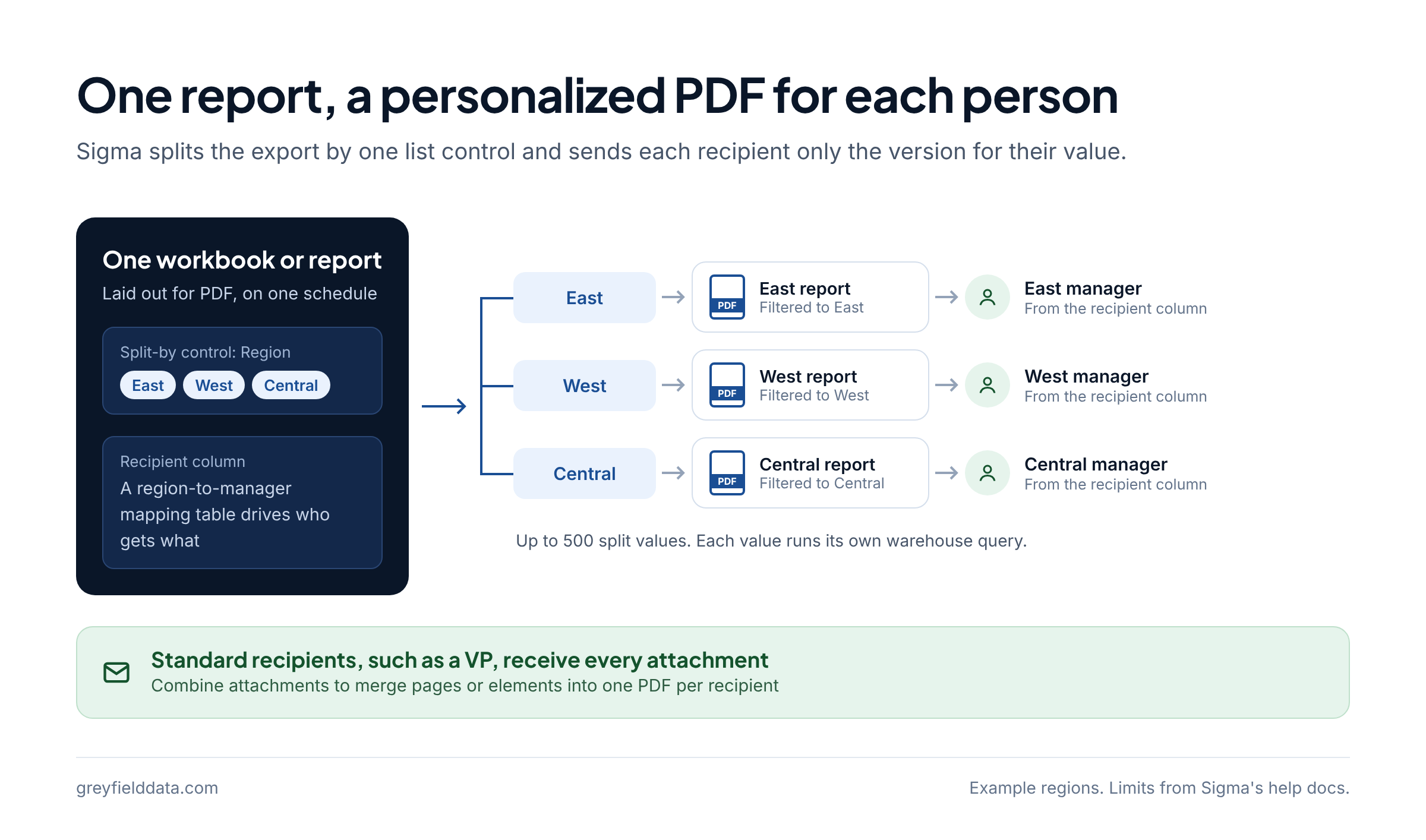
Under the hood, Sigma splits the export by the values of one control. It renders and queries the document separately for each value, so a burst with 40 regions runs 40 warehouse queries.
The diagram shows one report fanning out to a personalized PDF for each recipient.
When should you use bursting instead of a normal scheduled export?
Use bursting when the same report goes to many people and each person should only see their slice. Use a normal scheduled export when everyone gets the same file.
| Situation | Use | Why |
|---|---|---|
| One weekly PDF to the leadership team | Scheduled export | Everyone sees the same numbers |
| Each regional manager gets only their region | Email burst with dynamic recipients | One schedule, one PDF per region |
| Each manager gets their region, and a VP gets every region | Email burst with dynamic and standard recipients | Standard recipients receive all attachments |
| Send only when a number crosses a threshold | Scheduled burst with a condition | Conditions are checked per split value |
| More than 500 regions, stores, or reps | Rethink the split | The split-by control caps at 500 values |
Sometimes the most useful version of your dashboard is the PDF someone opens before their morning meeting. Bursting is how you send that PDF to 40 people without building 40 dashboards.
What do you need before you set up a burst?
You need a permission, an org setting, and a workbook built for it. Check these first, because the Burst option won't appear or won't work without them.
| Requirement | Where | Source |
|---|---|---|
| Your account type has the Export as email burst permission | Admin: account types | Account types |
| Restrict data in exports is off | Admin: exports | Restrict export recipients |
| If your company filters email by IP, Sigma's sending IPs are allowlisted, or you use custom SMTP | Your email admin | Export as email burst |
| A paid organization, not a trial | Sigma | Email bursts are unavailable in trials |
Build the split-by control
The control you split by must be a list control sourced from a column, and that column must be text or a number. For a regional report, add a list control on Region and make sure every page and element you want filtered is a target of it.
Add a recipient column
For dynamic recipients, add a column with email addresses from the same data source as the list control. A simple mapping table works: one row per region, with the manager's email. A row can hold several addresses separated by commas.
Lay the pages out for PDF
Sigma's export options include a few PDF layout settings worth using:
- Custom page width: 1050 pixels for letter portrait, or 1380 pixels for letter landscape.
- Page break element: controls where content moves to a new page.
- Expand table to first 1k rows: shows up to 1,000 rows of a table or pivot table in the PDF, instead of what fits on screen.
How do you schedule an email burst in Sigma?
You schedule a burst from the document's Share and export menu. These are the steps from Sigma's Export as email burst page, with the choices I'd make for a weekly regional PDF.
- Publish the workbook. Bursts use the latest published version, not your draft.
- Open the document menu and choose Share and export > Schedule export....
- Click Add schedule (or + New schedule if one exists).
- Set Destination to Email and Delivery method to Burst.
- Under Split by..., choose the
Regionlist control. - Add the email column as dynamic recipients. Add anyone who should get every region, like a VP, as standard recipients.
- Optionally add Cc or Bcc recipients. Sigma suggests these for audit and record keeping.
- Write the subject and message.
- Choose the attachments: the summary page plus the supporting pages or elements, each as PDF.
- Set Frequency to Weekly, Monday, 7:31 a.m., and set the time zone. For anything the presets don't cover, choose Custom and enter a cron expression, such as
31 7 * * 1for 7:31 a.m. every Monday. - Choose Always, or If a condition is met to send only when a value crosses a threshold.
- In the additional options, turn on Combine attachments (see below), and decide whether to keep the document link.
- Click Create.
To test it before the first Monday, use Share and export > Export... with the same burst settings to send an ad hoc burst now.
How do you combine attachments into one PDF?
Turn on Combine attachments to merge several PDF workbook pages or elements into a single PDF for each recipient. It needs at least two attachments of the same type, and it also works for merging Excel elements into one Excel file. This is the option I use: the recipient opens one file with the summary and the supporting reports together, instead of five separate PDFs. If you'd rather send separate files in one bundle, Send as .zip file compresses them into one ZIP. Both are described in Configure additional options for exports.
How do you add your branding and send from your own address?
Branding and the sender are org-wide settings an admin sets once, and they apply to every export email. I've found the branding setup straightforward.
| What you want | Setting | Notes |
|---|---|---|
| Your logo | Upload Logo in email customization | At least 135px wide, aspect ratio between 3:1 and 1:2 |
| Your name in the inbox | Sender name | Shows as "[Sender name] via Sigma Computing" |
| Replies go to your team | Reply-to email | |
| Your sign-off and footer | Signature name and Email footer | |
| Hide who scheduled it | Hide sender information | Hides the line in the body, not the From field |
| Your own From address | Custom SMTP server | Sends Sigma emails from an address and SMTP server in your domain |
To set branding, an admin goes to Administration > Exports > Email customization, edits Edit your email branding, sends a preview, and saves. Two things to know before you do:
- Applying any custom branding option removes all Sigma branding, and it turns off the unsubscribe option for scheduled emails for all recipients.
- With your own SMTP server, Sigma can't monitor deliverability, so failed sends and blocked recipients show up on your side, not Sigma's. You also need to allowlist Sigma's egress IPs on your SMTP server or firewall.
Your logo, your message, your sender address, your schedule. The delivery deserves as much care as the dashboard.
What are the limits of Sigma email bursts?
These are the limits listed in Sigma's Export as email burst docs when I checked them. Check the page for the current numbers before you design around them.
| Limit | Value |
|---|---|
| Split-by values | 500 |
| Dynamic recipients | 500 |
| Total recipients (dynamic plus standard) | 1,000 |
| Email size | 30MB for all attachments combined. Over that, the export fails and the owner is notified, and a schedule that keeps failing is paused (limits) |
| Split-by control | List control sourced from a text or number column |
| Saved views | Elements that only exist in a saved view aren't supported |
| Unsubscribe | Recipients can't unsubscribe from bursts with dynamic recipients |
Plan for warehouse load
Every split value is its own query, and Sigma processes bursts in batches. If bursts time out, Sigma's docs suggest simplifying the document, using materializations, or scheduling outside peak warehouse hours. Check what else runs in your warehouse at your send time.
Watch the recipient list
If your org restricts export domains, Sigma flags standard recipients when you create the export, but dynamic recipients at restricted addresses just don't receive the email (restrict export recipients). Test with a small region list first, and Bcc yourself on the first few runs.
Frequently asked questions
Can each recipient see only their own region?
Yes. Split the burst by a region list control and use a recipient column from the same data source. Each dynamic recipient gets only the attachments for their value, while standard recipients get all of them.
Can Sigma combine multiple PDFs into one attachment?
Yes. Combine attachments merges two or more PDF pages or elements into one PDF. It isn't available for direct downloads, only for exports.
Can Sigma send report emails from my company's email address?
Yes, with a custom SMTP server in your domain. Without it, you can still set the sender name, reply-to address, logo, and footer.
How many recipients can a Sigma burst send to?
Sigma's help docs list up to 500 split values, 500 dynamic recipients, and 1,000 total recipients per burst. Check the page for current limits.
Can I set up bursts through the Sigma API?
Sigma's October 16, 2026 release notes added bursting options to the endpoints for exporting a workbook and for adding and updating workbook schedules.
What to do next
Pick one report people already ask you to send as a PDF, add a region list control and a recipient column, and send yourself an ad hoc burst before you schedule it. If you're new to Sigma, start with how I learned Sigma in 4 weeks. If you're moving scheduled reports over from Tableau or Power BI, the 10 checks before a Sigma migration cutover cover the outputs people forget. If you want help setting up bursting for your team, see Sigma consulting or book a call with me.
Part of the Sigma guides, a reading path through related articles.
Linus Tse
Founder of Greyfield Data. Built 400+ dashboards. Certified in Sigma, Snowflake, Tableau, and Power BI.
About Linus